
Version Summary
Summary Description
ZINFI 25.4 Release introduces several enhancements to support the Partner Journey on the ZINFI Unified Partner Management (UPM) platform. These enhancements help streamline processes across the Administration, Onboarding, Enablement, Marketing, Sales, Incentive, and Acceleration phases.
Administration
- Configurable Date-Time Format: This feature lets administrators choose a preferred date-time format (e.g., DD/MM/YYYY, YYYY/MM/DD) for the entire portal, ensuring consistent, region-specific display and reducing confusion across all pages.
- Generic Hash Codes – Email Templates in CMS Editor: This feature lets administrators use universal placeholders in system emails, which are automatically replaced with real user details - like name or username - when sent, enabling dynamic, personalized communication.
- Email Report Drill-through Capability: This feature enables users to right-click a campaign in the Market Through Email Report and view detailed Prospect or Contact data. Powered by Power BI, it lets users move from summary metrics to specific records, improving campaign analysis and visibility.
- System Emails - View in Browser: This feature lets users open system emails in a web browser for consistent formatting and readability. Each email includes a secure link that preserves layout, branding, and personalized details, ensuring a clear and accurate view across all devices.
- Terms and Conditions – Portuguese Button Translation: When the portal language is set to Portuguese, the Terms and Conditions screen automatically translates key action buttons ensuring a clear and localized user experience.
- Country-Language Selection Restriction: This feature lets admins define valid country-language pairs in Access Management. When users select their preferences, the system allows only configured combinations and shows a message if the selection is invalid.
- Enhanced Username Validation – Support for “+” Character: This enhancement enables usernames with the “+” character to be accepted across all applications, ensuring consistent validation for login, password reset, user creation, and updates in line with modern email standards.
- Translation Support for Sign-Up Pages: This enhancement localizes the entire user registration experience by translating all text, labels, buttons, and messages into the portal’s supported languages. This allows new users to sign up in their preferred language, improving accessibility and usability without altering the registration process.
- Country-Language Selection in the Mobile App: This fix ensures mobile users see portal content in the correct language and country based on their profile. It resolves previous mismatches by dynamically applying validated settings and aligning mobile behavior with the desktop experience.
Enable
- Configurable Assessment Retake Limit: This feature lets administrators set how many times partners can retake a course assessment. By enabling Allow Retake and defining a Retake Count, admins give partners controlled opportunities to improve their scores while maintaining assessment flexibility.
- ZIP File Support and Preview in Content Library: This feature lets users view ZIP file contents directly in the portal through an interactive File Explorer-style view, eliminating the need to download files first.
Sell
- Predictive Search: Predictive Search automatically suggests matching results in real time as users type. After entering three characters, results appear instantly without needing to click or press Enter. On-screen prompts guide users, creating a faster and more seamless search experience.
Accelerate
- Community Event Types with Color Codes: This feature lets administrators define and manage community event categories for organization-wide and internal enablement activities, using color tags and statuses to clearly organize and distinguish various events.
- Create and Manage Community Calendar Events: This feature centralizes scheduling and sharing of internal enablement events. Administrators can create, edit, and publish events with details and links, which instantly appear to assigned partners. Partners can view, filter, and access events in a color-coded calendar, ensuring seamless visibility, engagement, and collaboration across the portal.
- Support for Media Files Attachments to Community Calendar Events: This feature allows administrators to upload event-related media files - like documents, images, or videos - directly to the event record, giving partners easy access to all materials from their portal calendar.
- Partner Locator – Multi-Lingual Support: The Partner Locator now supports multiple languages, offering a fully localized experience for global users. All interface elements - labels, filters, buttons, and partner details - are displayed in the selected language, allowing administrators, partners, and prospects to easily search, evaluate, and connect with partners in their preferred language.
- Partner Organization - Direction & Distance in Marketplace: This feature lets users instantly navigate to a partner’s location via Google Maps, using stored latitude and longitude data. It also displays real-time distance from the user’s zip code, helping them quickly find and visit nearby partners with ease.
ZINFI 6 S’s of CX Strategy
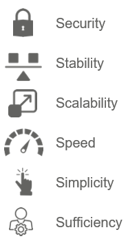
ZINFI UPM 25.4 Features
Configurable Date-Time Format
Related Application(s)
Access Management
Feature Description
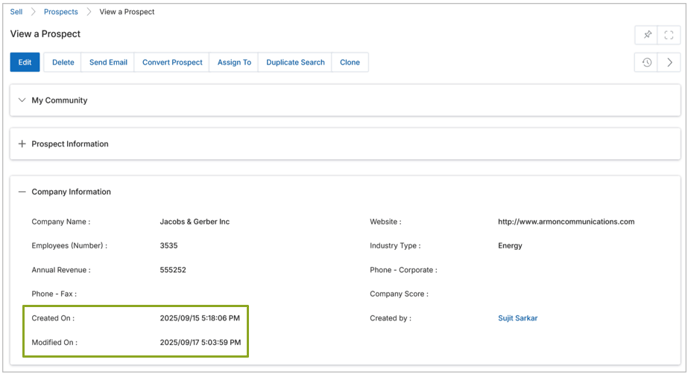
The Configurable Portal Date-Time Format feature allows portal administrators to configure the default date-time format for their portal. Once configured, this format is applied uniformly across all portal pages and components, including list pages, view pages, and add/edit pages.
Previously, the platform used a fixed MM/DD/YY format across the portal without customization options. Administrators can choose from multiple formats (e.g., DD/MM/YYYY, YYYY/MM/DD, etc.) based on their regional or organizational preference. The selected format becomes the active date-time format for that portal and automatically deactivates all other formats.
This change ensures consistency across the portal and reduces user confusion when entering, viewing, or exporting date-time data.
- Log in to the UPM as an administrator.
- Navigate to Administration > Access > Date-Time Settings to open the View Date-Time Settings page, which displays all active and inactive date-time formats.
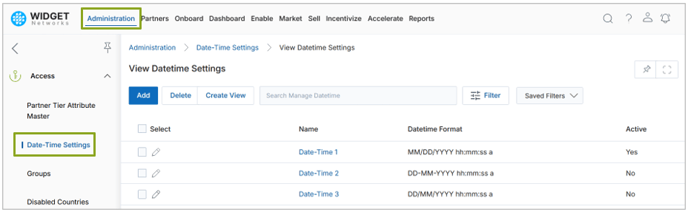
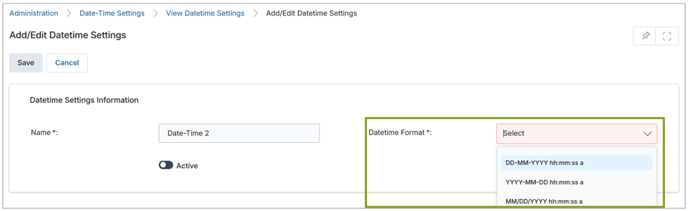
- Open the Add/Edit Date-Time Settings page and review the available formats (e.g., DD/MM/YYYY, YYYY/MM/DD, MM/DD/YYYY) in the Date-Time Format dropdown list.
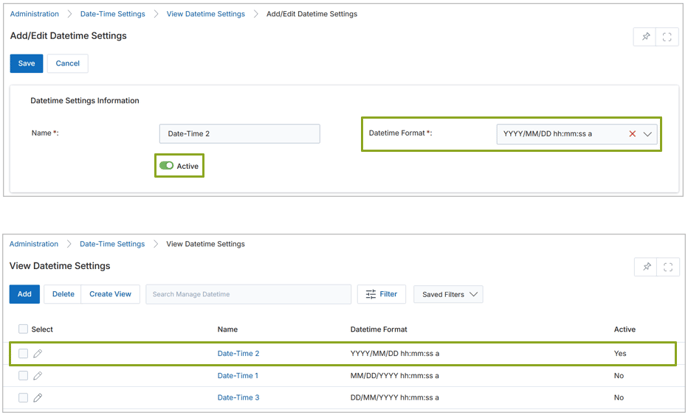
- Select the desired format and mark it as Active. Once activated, all other formats are automatically set to Inactive.
- In the following example, verify the changes by navigating to the Prospect Details page, where the selected date-time format is applied consistently and displayed correctly.
Origin of Feature
Customer request. This feature was developed to allow portals to display dates in a format aligned with the user’s preferences.
CX Strategy Relation (6 S’s)

Portal User-Facing Benefits
This feature ensures consistent date-time formatting across the portal, allows admin configuration for regional standards, and reduces user errors.
______________________________________________________________________________________
Generic Hash Codes – Email Templates in CMS Editor
Related Application(s)
Alerts & Notification Management
Feature Description
Implementing Generic Hash Codes – Email Templates in CMS Editor feature enhances the personalization and flexibility of system-generated email templates. Previously, when editing a system email template in the CMS editor, administrators could only access application-specific hash codes - placeholders that dynamically inserted values tied to the system emails. However, these codes did not support inserting general user-level details, such as the recipient’s name, username, or approver information, which limited the personalization of system emails.
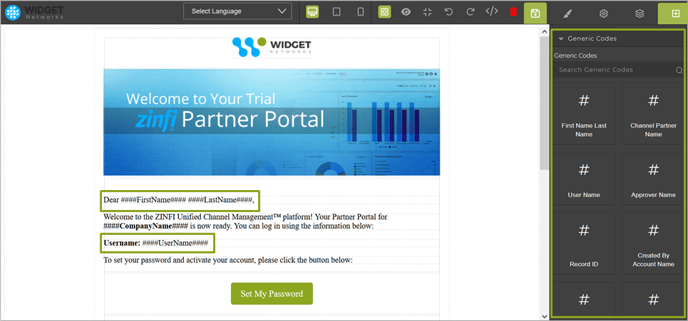
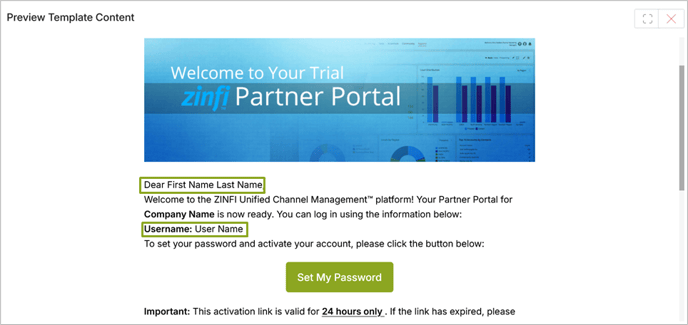
This enhancement introduced a new section called Generic Codes within the Manage Content page for system emails. These Generic Codes are universal placeholders that can be inserted into any system email template. When the email is sent, the system automatically replaces these codes with the corresponding live data - such as the logged-in user’s or approver’s name - ensuring each email is dynamically personalized and contextually relevant to the recipient. Examples include:
-
- First Name Last Name – dynamically pulls the logged-in user’s first name and last name.
- Username – dynamically pulls the logged-in user’s username.
- Approver Name – dynamically pulls the approver’s name.
This enhancement ensures that common user-specific information can be easily inserted into any system email template, improving personalization and communication consistency.
- Log in to the UPM as an administrator.
- Navigate to Administration > Alerts > System Emails and open the details page of the desired System Email.
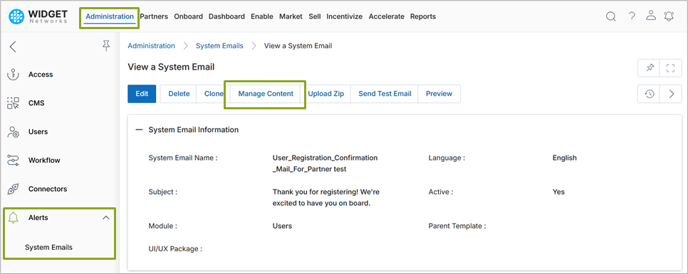
- Within the selected System Email template, click Manage Content to open the CMS editor.
- In the CMS editor, you will now see the Generic Codes section – a list of user-independent hash codes (placeholders) that can be dragged-and-dropped directly into the template.
- Click Preview to confirm that the Generic Codes are dynamically replaced with real-time values before saving and publishing the content.
Origin of Feature
Customer request. This feature lets admins insert generic hash codes in system email templates so the system can automatically replace them with real user details (like name or username) when the email is sent, ensuring personalized communication without manual edits.
CX Strategy Relation (6 S’s)

Portal User-Facing Benefits
This feature allows administrators to use generic hash codes in system email templates, which are automatically replaced with actual user information and improves end-user satisfaction with more personalized messages.
______________________________________________________________________________________
Configurable Assessment Retake Limit
Related Application(s)
Learning Management
Feature Description
The Configurable Assessment Retake Limit feature allows portal administrators to define how many times a partner can retake an assessment within a course. Once configured, this restriction is applied automatically to all partner users assigned to that assessment.
Previously, the platform allowed partners to take each assessment only once, with no option to permit additional attempts. With this enhancement, administrators can now enable the Allow Retake option and specify the Retake Count (for example, 2). The defined number determines how many additional times a partner can resubmit the assessment after the initial attempt - e.g., if the retake count is set to 2, the partner can attempt the evaluation three times (1 original + 2 retakes).
This change gives administrators greater control over assessment flexibility and improves the learning experience by allowing partners to reattempt and improve their scores within defined limits.
- Log in to the UPM as an administrator.
- Navigate to Enable > Learning > Assessments.
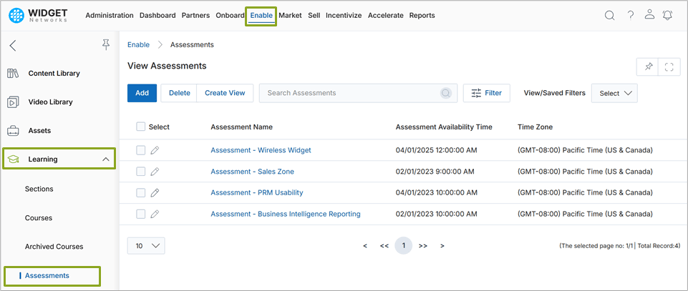
- Open an existing assessment or create a new one.
- In the assessment setup screen, locate the Allow Retake toggle.
- By default, this option is disabled, allowing only a single attempt.
- When enabled, an additional field Retake Count appears.
- Enter the desired retake count (for example, 2) to specify how many additional times partners can attempt the assessment.
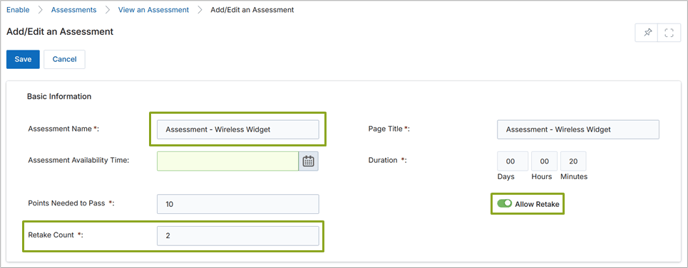
- Save the assessment configuration and associate it with a Course before assigning the Course to the Partners.
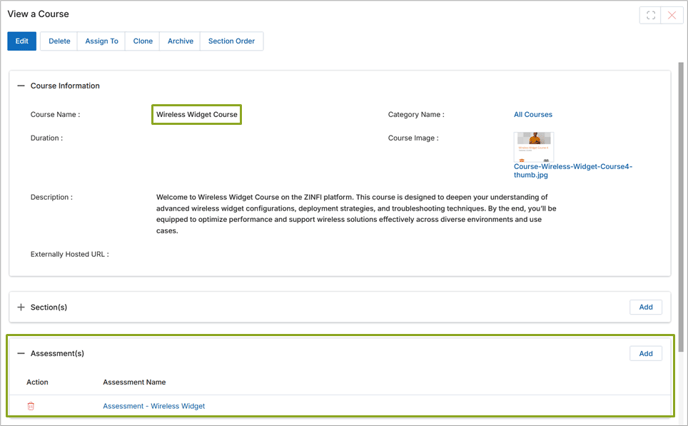
Example
- Log in as a partner user and navigate to My Courses.
- Get enrolled in the assigned course.
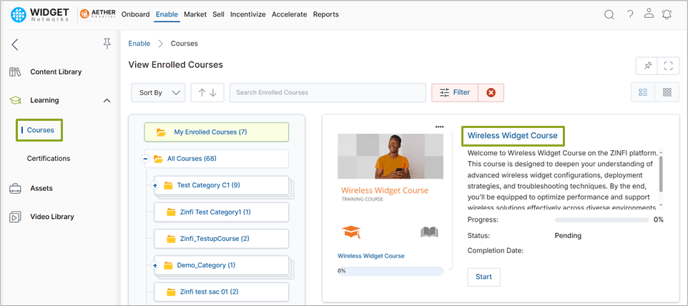
- Locate the related assessment on the details page of the course.
- The Attempted column displays the current progress (e.g., 0/3) of the assessment, showing how many attempts have been used out of the total allowed.
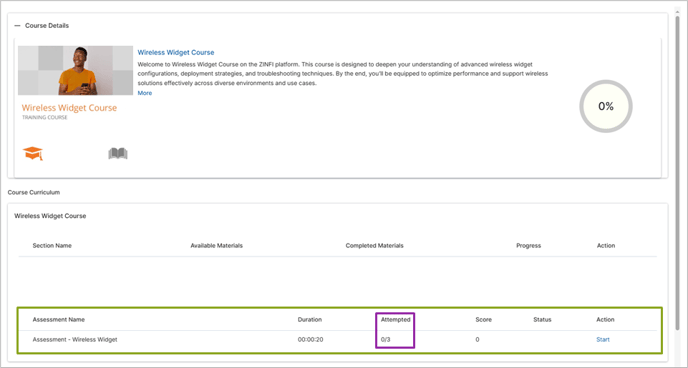
- Submit the assessment once – the count updates to 1/3.
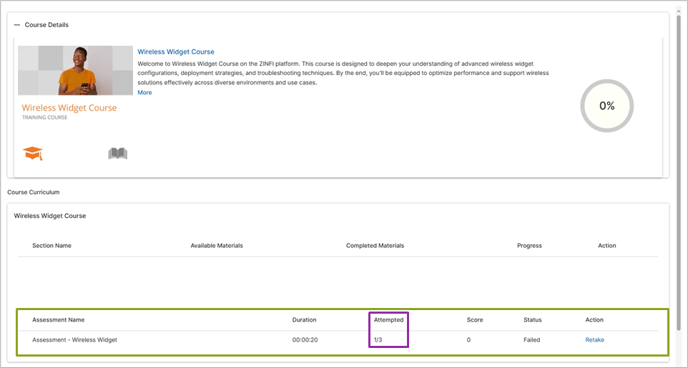
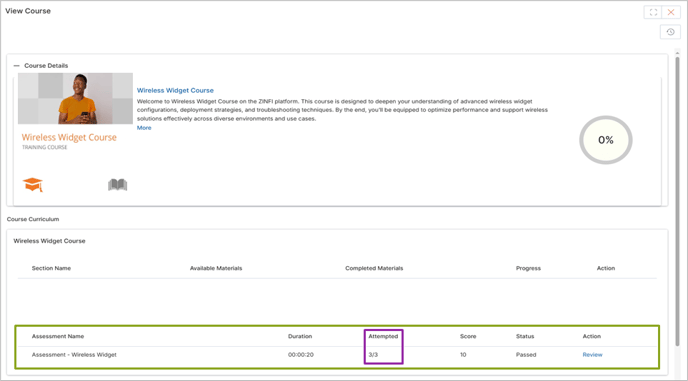
- Retake the assessment twice more until the total reaches 3/3.
- After the final allowed attempt, the Retake action changes to Review, indicating that no further submissions are permitted.
Origin of Feature
Customer request. Product enhancement to support configurable assessment attempts, enabling partners to reattempt evaluations while maintaining administrative control over retake limits.
CX Strategy Relation (6 S’s)

Portal User-Facing Benefits
This feature enhances learning flexibility by allowing controlled retake opportunities, provides transparent attempt tracking for users, and ensures administrators maintain consistent control over assessment policies.
______________________________________________________________________________________
Email Report Drill-through Capability
Related Application(s)
Business Intelligence Reports
Feature Description
The Email Report Drill-through Capability feature enhances visibility and analytical depth within the Market Through Email Report, specifically in the Campaign Overview Report section. This enhancement allows users to access detailed Prospect and Contact information directly from campaign-level summaries.
Previously, the Campaign Overview Report within the Market Through Email application displayed only high-level metrics such as Campaign Name, Associated Email Template, Executor, Campaign Type, and aggregated Prospect counts. While this provided a consolidated summary, users could not drill down to identify the specific Prospects or Contacts associated with each campaign.
With this enhancement, the system introduces Drill-through capability, powered by Power BI. Users can now right-click any campaign record in the Campaign Overview Report and access the Drill Through menu, which includes two options – Prospect and Contact.
-
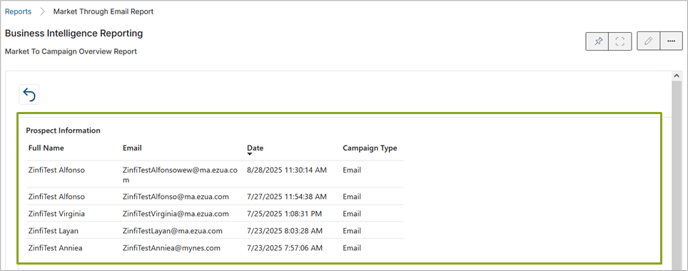
- Selecting Prospect displays all individual prospect records generated through the selected campaign.
- Selecting Contact displays the list of contact records associated with the Prospects generated through the selected campaign.
This enhancement enables users to move seamlessly from a high-level campaign summary to specific lead or contact data, providing deeper insight into campaign performance and audience engagement.
- Log in to the UPM portal and navigate to Reports > Market Through Email Report.
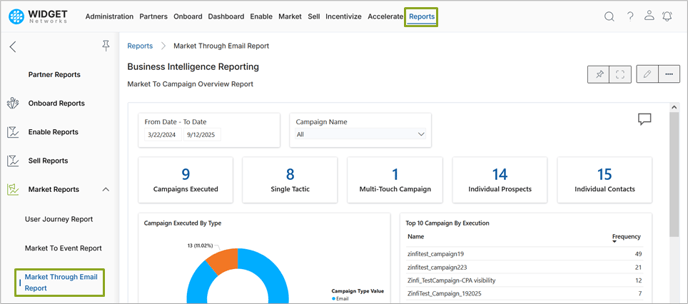
- Locate the Campaign Overview Report table, which lists campaign-related data such as campaign name, email template, executor, and campaign type.
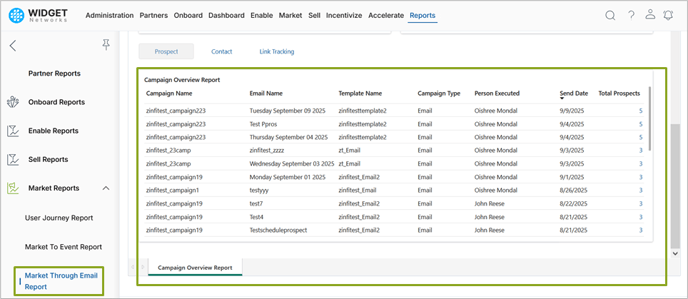
- Right-click any campaign record to open the Drill Through menu.
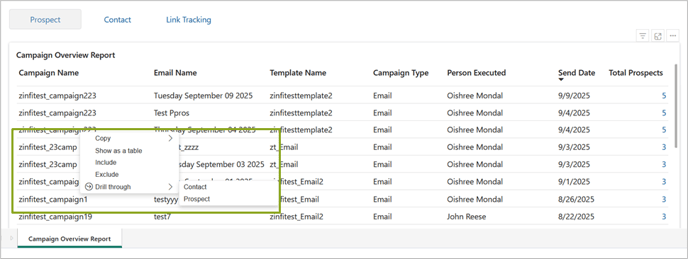
- In this example, select Prospect to view the list of unique prospects registered through that campaign.
- Alternatively, select Contact to view the associated contacts generated by the same campaign.
Origin of Feature
Customer request. Internal enhancement to improve campaign reporting transparency and data accessibility for users analyzing email-driven engagement.
CX Strategy Relation (6 S’s)

Portal User-Facing Benefits
This feature enables users to drill down from summarized campaign data to detailed prospect or contact-level records, improving visibility, enhancing marketing analytics, and supporting better campaign performance tracking.
______________________________________________________________________________________
Predictive Search
Related Application(s)
Generic
Feature Description
Predictive Search is a feature that uses artificial intelligence and algorithms to guess what a user is looking for and provides real-time suggestions as they type. Instead of waiting for a full query, it analyzes each keystroke to offer relevant results, saving users time and helping to prevent typos and bad searches.
Previously, the search allowed users to look up records only after manually triggering the search action - typically by clicking the search icon or pressing Enter - and results were fetched strictly based on the full or partial match of the record name.
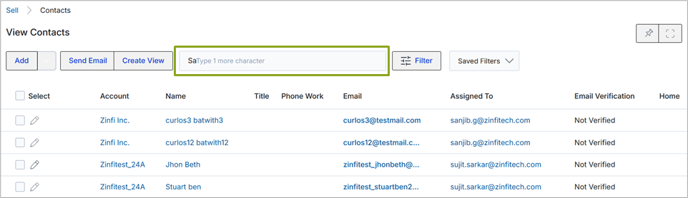
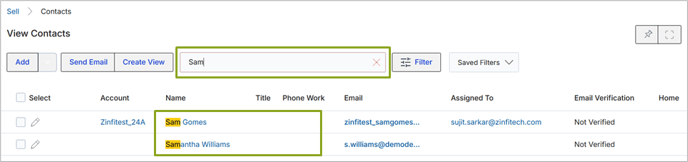
With this enhancement, the system now supports predictive search, automatically suggesting results as users type. Once a minimum of three characters are entered, the system dynamically begins searching through available records and instantly displays matching suggestions, eliminating the need for an explicit search command.
To guide the user, the system also provides validation messages during input:
-
- After entering one character, it prompts: “Type two more characters.”
- After two characters, it prompts: “Type one more character.”
Once three characters are entered, the predictive search activates automatically.
Additionally, the traditional search icon has been removed, emphasizing the streamlined, automated experience. The search continues to update dynamically as the user types further or pauses, ensuring a faster and more intuitive lookup process without interrupting the typing flow.
- Log in to the UPM portal and locate the Search bar in the listing page of an application.
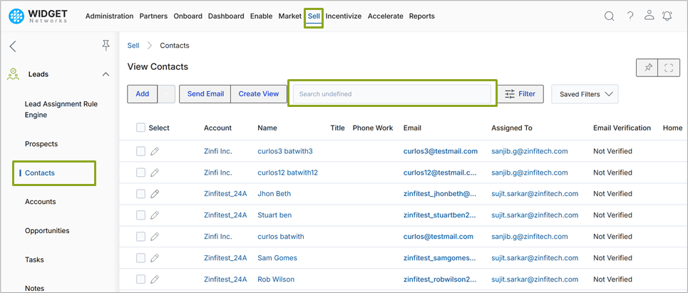
- Begin typing a record name (for example, “Sam”).
- After entering one or two characters, observe that the system displays validation prompts guiding you to type additional characters.
- Once three characters are entered, the system automatically searches and displays a list of matching records, such as “Sam” and “Samantha.”
- As you continue typing beyond three characters, the search results automatically refresh in real time.

Origin of Feature
Customer request. Internal enhancement that uses predictive algorithms to suggest real-time results as users type, enabling faster, smarter, and more accurate searches.
CX Strategy Relation (6 S’s)

Portal User-Facing Benefits
This feature offers a faster, smarter search experience by providing real-time suggestions as users type, reducing manual effort, and improving overall search accuracy across the portal.
______________________________________________________________________________________
ZIP File Support and Preview in Content Library
Related Application(s)
Content Library Management
Feature Description
The ZIP File Support and Preview in Content Library feature enhances user experience by allowing administrators and partners to upload and preview the contents of ZIP files directly within the portal – without needing to download them first.
Previously, when users attempted to preview a ZIP file, the system displayed a blank screen along with a message stating that ZIP file preview was not supported. This limited users’ ability to quickly assess whether a ZIP file contained the files they needed to view, download, or share.
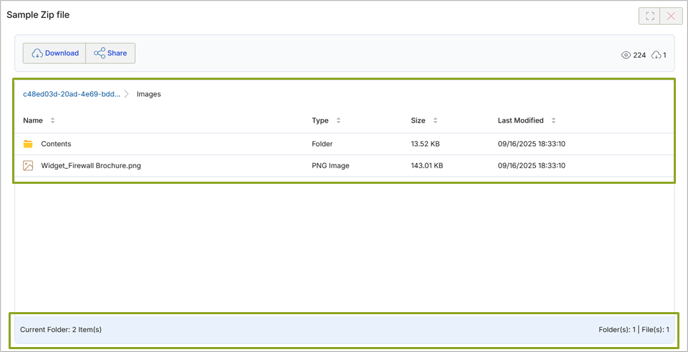
With this enhancement, the system now displays the ZIP file’s internal structure in an interactive File Explorer-style view. Users can easily browse through folders, view file names, file types, sizes, and last modified dates – all without extracting or downloading the ZIP file.
The preview interface supports intuitive navigation, including:
-
- Folder traversal: Users can click into subfolders to view their contents and navigate back using the provided breadcrumb path.
- Sorting options: Files and folders can be sorted by Name, Type, Size, or Last Modified date. Folders are always displayed at the top for convenience.
- Content summary: A summary at the bottom of the viewer displays the total number of items in the current folder, along with a breakdown of how many are files and how many are folders.
Additionally, the existing Download and Share options remain available at the top of the page, allowing users to take action immediately after reviewing the ZIP file’s contents.
- Log in to the UPM portal and navigate to Content Library.
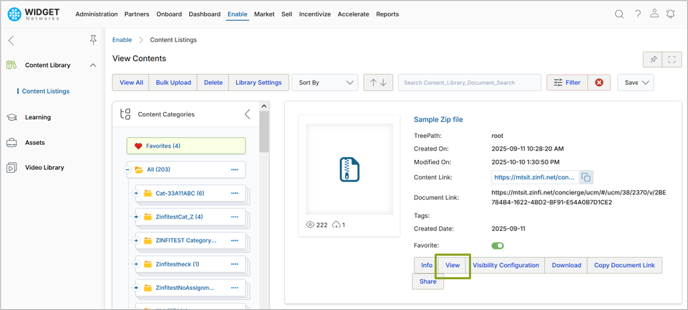
- Select View button to open a ZIP file viewer.
- Verify that the ZIP file’s folders and files are displayed in a structured view, similar to a File Explorer.
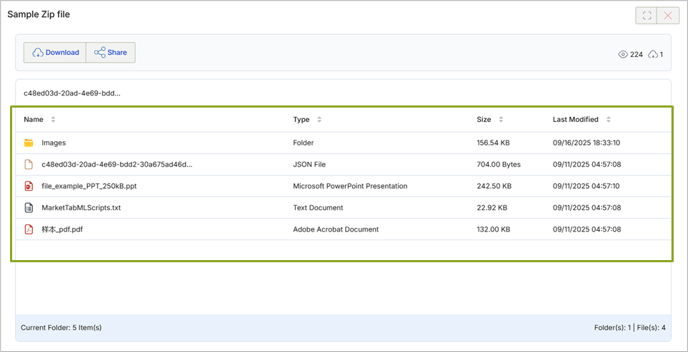
- Click into subfolders to confirm that nested contents are viewable.
Origin of Feature
Customer request. This enhancement improves usability and transparency by allowing users to preview ZIP file contents directly within the Content Library.
CX Strategy Relation (6 S’s)

Portal User-Facing Benefits
This feature improves usability and transparency in the Content Library by enabling users to preview ZIP file contents directly in the portal. It saves time, enhances decision-making, and eliminates unnecessary downloads – making file management simpler and more efficient.
______________________________________________________________________________________
Community Event Types with Color Codes
Related Application(s)
Community Management
Feature Description
The Community Event Types with Color Codes feature introduces a master configuration page within the Community application, enabling administrators to define and maintain distinct event categories for organization-wide and internal enablement activities, ensuring consistent scheduling and clear visualization.
Each event type is associated with a specific color tag, making it easy to visually distinguish between different kinds of events on the calendar – such as training sessions, or partner meetings.
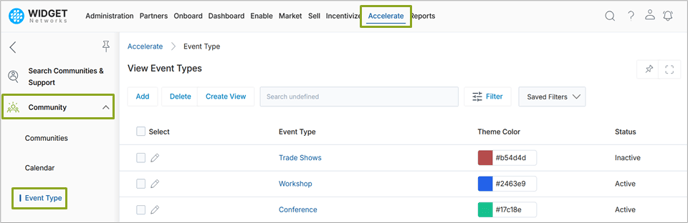
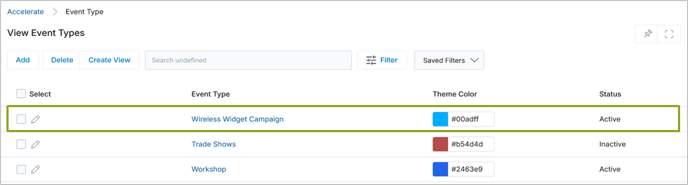
Administrators can create new event types or edit existing ones from View Event Types page. Each event type includes:
-
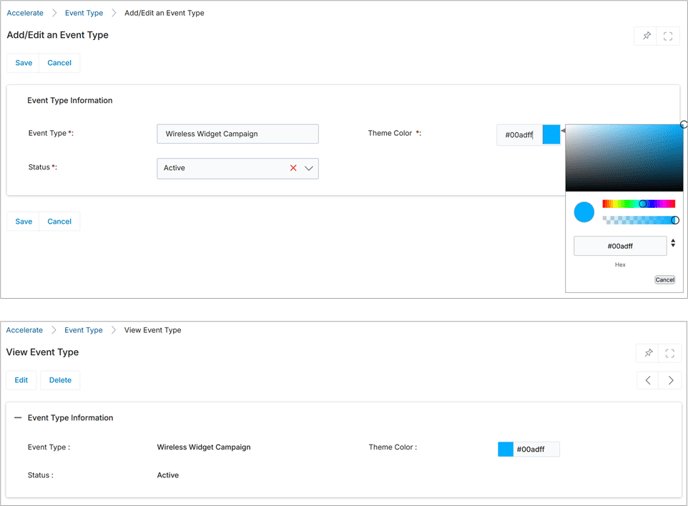
- Event Type Name – The display name of the event type.
- Color Picker – Used to assign a unique color code to visually identify events of this type.
- Status (Active/Inactive) – Only active event types can be selected while creating new events.
This feature ensures that event categorization remains organized and visually intuitive for both administrators and partners.
- Navigate to Accelerate > Community > Event Type.
- Add a new Event Type by providing a name, selecting a color, and marking it as Active and save the changes.
- Verify that the event type appears in the View Event Types page.
Origin of Feature
Customer request. This feature is developed to provide structured Community Event categorization and improve visual clarity in calendar views.
CX Strategy Relation (6 S’s)

Portal User-Facing Benefits
This feature streamlines Community Event management by enabling color-coded event categorization, helping users easily identify event types and maintain better calendar organization.
______________________________________________________________________________________
Create and Manage Community Calendar Events
Related Application(s)
Community Management
Feature Description
The Create and Manage Community Calendar Events feature provides a centralized, organization-wide platform for scheduling, maintaining, and sharing internal enablement events across the partner ecosystem. It empowers administrators to efficiently create, edit, and manage event records, while enabling partners to view, filter, and access events relevant to their assignments - all within a unified calendar interface.
For administrators, this feature simplifies event organization through the Event Calendar view, where they can define event types, configure event details (name, duration, and description), and attach external links such as registration or content pages. Once saved, events are instantly visible to assigned partners based on their country, language, or group configuration, ensuring accurate and timely communication.
For partners, the same calendar offers a clear, interactive view of upcoming Community Events - color-coded by type for quick recognition. Partners can easily filter events by category, preview details, and access registration or resource links directly from the calendar, enhancing engagement and participation.
By connecting event creation and partner visibility within one streamlined workflow, this feature strengthens collaboration, improves transparency, and ensures that every community event is both discoverable and actionable.
- Navigate to Community > Calendar.
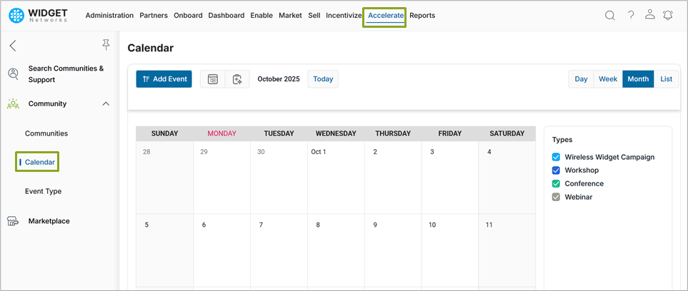
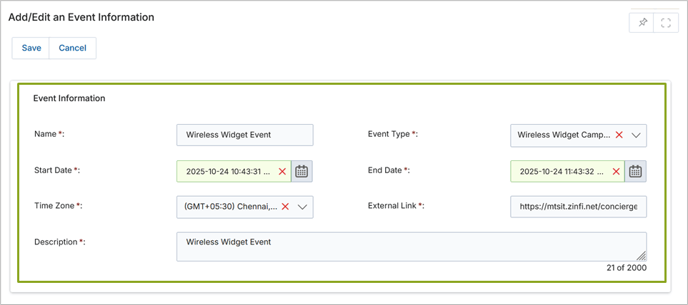
- Click Add Event and enter details such as Event Type, Date, Description, and External Link.
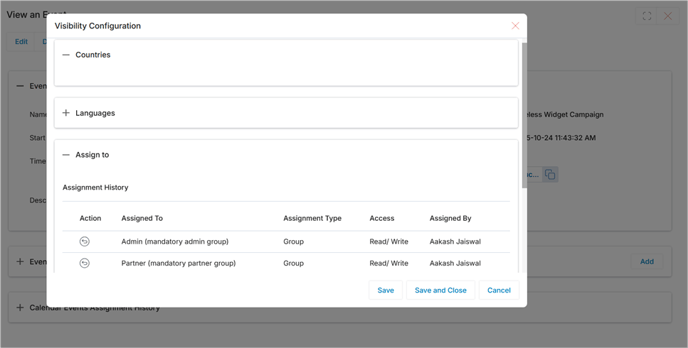
- Assign the event to one or more Partners or Groups based on country/language configuration.
- Save the event - it will appear in the calendar view on the specified date.
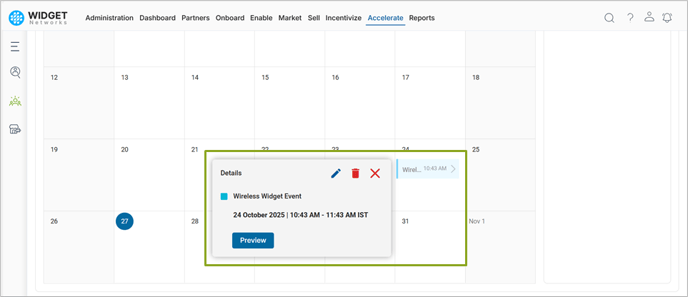
- To review or edit, click on the event entry from the calendar and click Preview which will take us to the details page of the event.
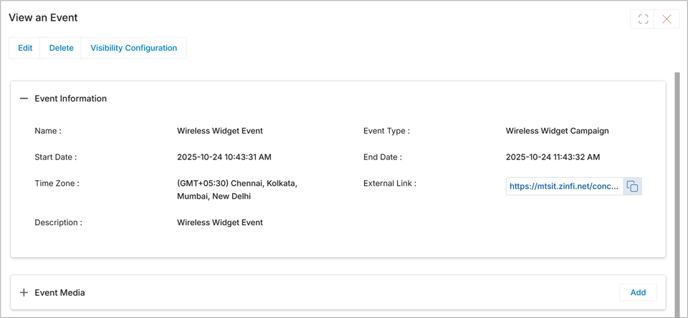
- Update necessary information and save to ensure real-time synchronization of changes across partner views.
- Now, log in as a Partner User to UPM and navigate to Accelerate > Community > Calendar.
- View all assigned events displayed within the calendar interface.
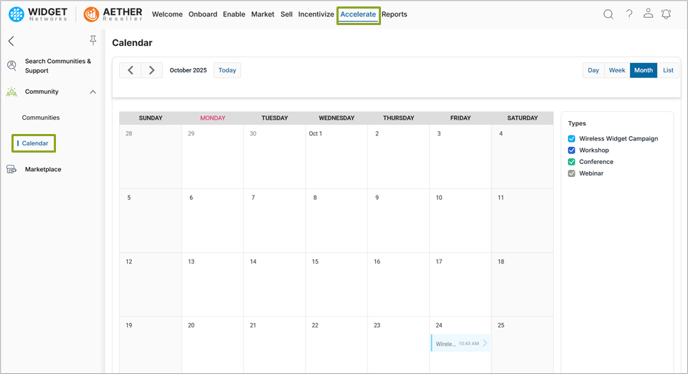
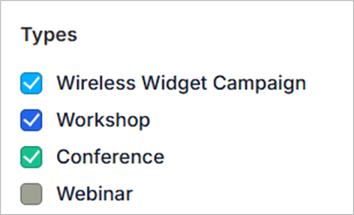
- Select or deselect event types to instantly filter and view relevant events in the calendar.
- Click on Preview an upcoming event.
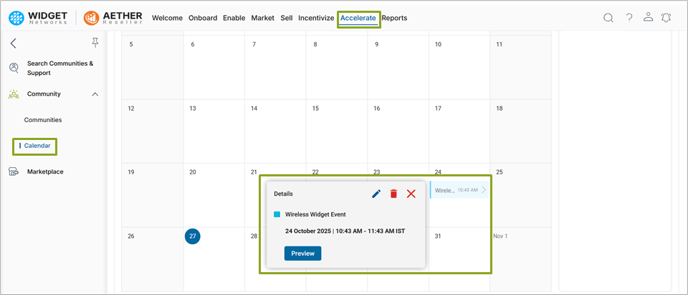
Origin of Feature
Customer request. The feature is developed to centralize community event management while extending visibility to partners for improved collaboration and engagement.
CX Strategy Relation (6 S’s)

Portal User-Facing Benefits
This feature ensures that administrators can easily manage internal enablement and organization-wide events, while partners gain transparent access to event information and resources - creating a more connected, informed, and participative partner ecosystem.
______________________________________________________________________________________
Support for Media Files Attachments to Community Calendar Events
Related Application(s)
Community Management
Feature Description
The Support for Media Files Attachments to Community Calendar Events feature allows administrators to directly upload event-related media files - such as documents, presentations, images, and videos - within the event record.
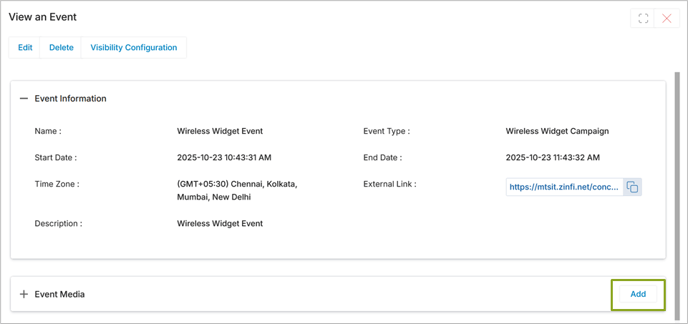
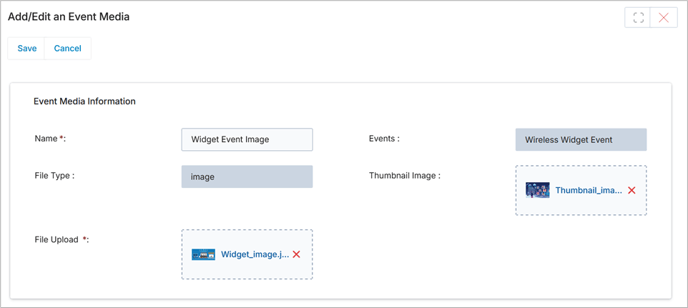
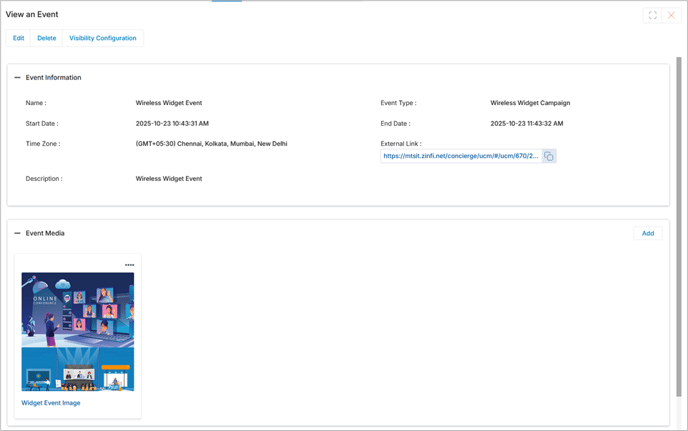
Administrators can attach multiple files to an event from the Event Media section on the Add/edit Event page. The files are displayed in a card view, showing file names and types for easy identification. Partners assigned to the event can later view or download these media files through their portal calendar, providing them with all event-related materials in one place. This functionality mirrors the upload and management behavior used in the Content Library, ensuring a consistent application experience.
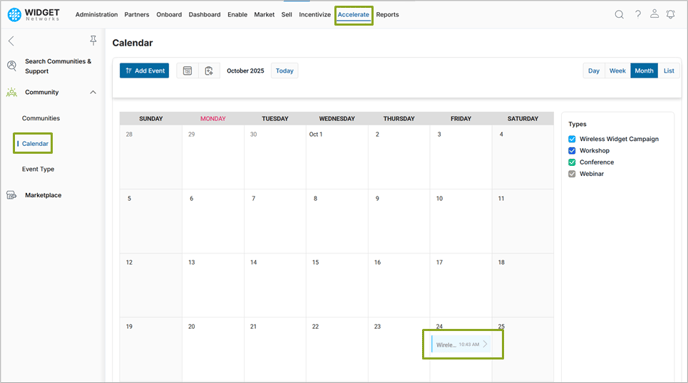
- Navigate to Community > Calendar and open an existing event.
- Go to the Event Media section.
- Click the Add button and attach a document or image.
- Verify that the file appears in the Event Media section once uploaded.
Origin of Feature
Customer request. The feature is developed to ensure that administrators can upload and manage event-related media files directly within the event record, while partners can easily view or download them from their calendar, ensuring quick access to all event resources.
CX Strategy Relation (6 S’s)

Portal User-Facing Benefits
This feature ensures administrators can share all essential event materials within the event record, while partners can instantly access them from their calendar, minimizing manual coordination and improving event readiness.
______________________________________________________________________________________
System Emails - View in Browser
Related Application(s)
Alerts Management
Feature Description
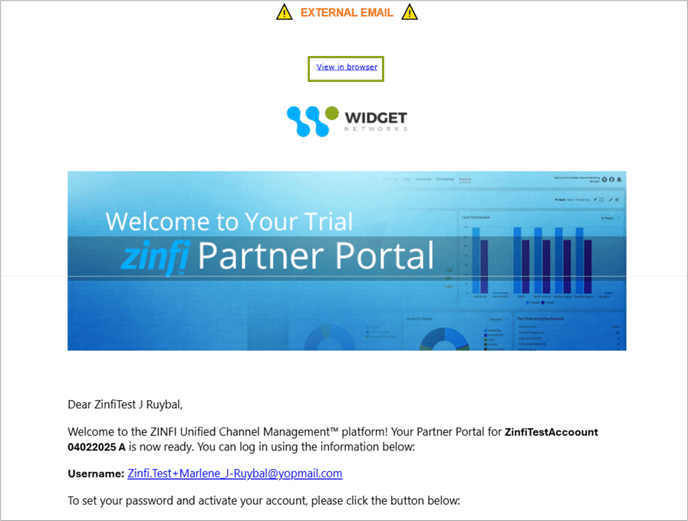
The System Emails - View in Browser feature introduces a new capability that allows users to open system-generated emails directly in a web browser for optimal readability and formatting consistency.
Previously, recipients could only view workflow or approval-related system emails within their mail client, where rendering inconsistencies could occur due to different email service providers. With this enhancement, each system email now includes a “View in Browser” link - displayed prominently at the top of the email body.
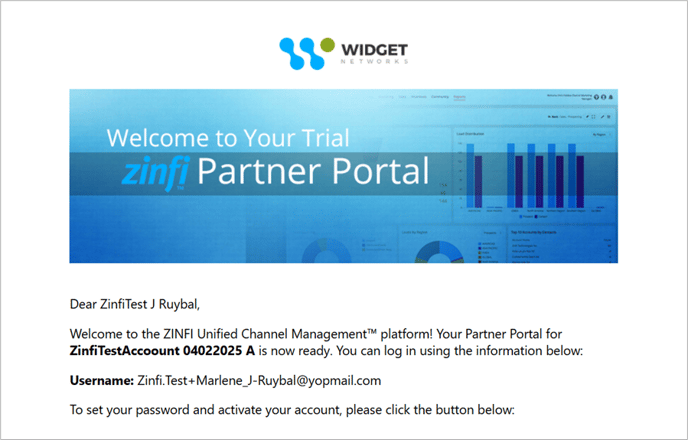
When clicked, the link opens a web version of the email in a browser tab, preserving all layout, formatting, and branding elements. Dynamic hash codes within the email (e.g., recipient name, approval details) are automatically resolved to live values, ensuring the displayed content matches the version received in the inbox.
To ensure secure access, each “View in Browser” link is unique and tokenized, accessible only by the intended recipient. The link follows an HTTPS structure and is non-guessable, safeguarding the privacy of email content.
This functionality applies to all system-generated transactional emails across workflows, approval flows, and scheduled communications.
Origin of Feature
Customer request. This system enhancement initiated to improve email visibility and accessibility, particularly for users facing rendering issues in third-party email clients. Developed to provide consistent, branded, and accessible experience for all workflow and approval-based system notifications.
CX Strategy Relation (6 S’s)

Portal User-Facing Benefits
This enhancement ensures users can seamlessly view system emails in a browser with accurate formatting and personalization intact. It eliminates inconsistencies across different email platforms, enhances readability, and maintains the professional look and feel of system-generated communications.
______________________________________________________________________________________
Partner Organization - Direction & Distance in Marketplace
Related Application(s)
Marketplace Management
Feature Description
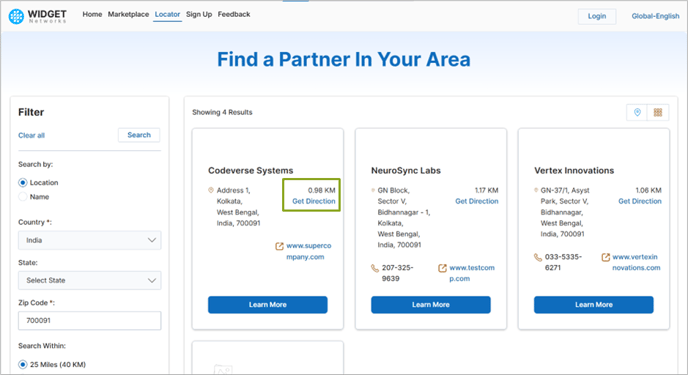
The Partner Organization - Direction & Distance in Marketplace provides users an instant way to navigate to a listed partner’s physical location through integrated mapping services such as Google Maps. When users click the "Get Direction" link on each partner card, they are redirected to a live map view showing the exact route from their current or chosen location to their partner’s address. This functionality leverages the latitude and longitude data stored in each Partner Account within ZINFI.
Alongside the Get Direction option, each listing also displays a distance indicator (e.g., "0.98 KM" or "1.17 KM") that shows how far the partner is from the user’s specified zip code. This automatic distance calculation uses geolocation data to provide real-time, user-specific proximity information. It helps users quickly compare nearby partners and choose the most convenient one to visit.
Together, the Get Direction and Distance Display features deliver a powerful location intelligence experience - bridging search results with real-world accessibility. Users can easily plan visits, estimate travel effort, and visualize partner proximity - all with a single click, simplifying local engagement and improving navigation efficiency.
- Navigate to Locator in UPM.
- Search for partners and locate the Get Direction link beside the records.
- Click the link to open Google Maps.
Origin of Feature
Customer request. This feature is developed to simplify navigation and enhance real-world partner engagement from within the portal.
CX Strategy Relation (6 S’s)

Portal User-Facing Benefits
This feature enhances usability by connecting digital directory data with physical navigation tools, enabling users to effortlessly locate and visit partner locations without manual address entry.
______________________________________________________________________________________
Fixes and Patches
Partner Locator – Multi-Lingual Support
Related Application(s)
Marketplace Management
Feature Description
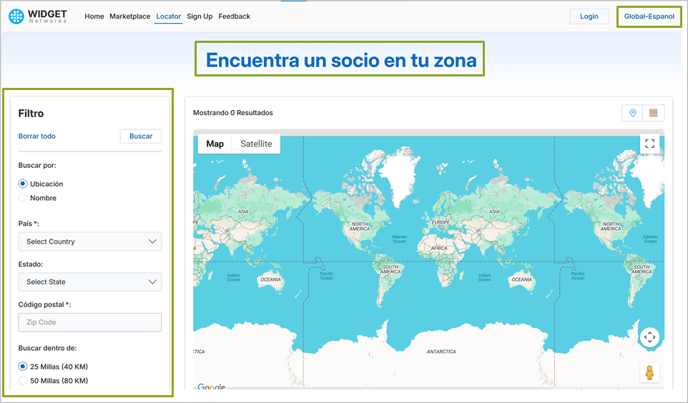
The Partner Locator is now available in multiple translated languages beyond English, enabling a seamless and localized user experience for global audiences. Administrators, partners, and end-prospects can interact with the Partner Locator in their preferred language, making it easier to discover, evaluate, and connect with partners.
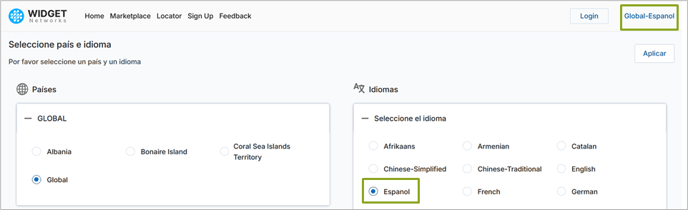
This enhancement ensures that all UI labels, filter names, buttons, and partner details within the Partner Locator interface are displayed in the selected language. Buyers and prospects can perform searches using location-based criteria (country, state, zip code, and radius) or partner name filters, now fully translated to match their chosen language setting.
This improvement supports a truly global user base, ensuring clarity and inclusivity across regions.
- Navigate to the UPM pre-login page and set the portal language to Spanish.
- Click the Partner Locator link.
- The landing page will open with Google Maps integration, filter panel, and partner listings now fully translated based on the portal language selection.
Origin of Feature
Customer request. This feature was introduced to make the Partner Locator accessible to a global audience by supporting multiple languages.
CX Strategy Relation (6 S’s)

Portal User-Facing Benefits
This enhancement allows global users to experience the Partner Locator in their native language, improving accessibility, comprehension, and ease of use for administrators, partners, and prospects.
______________________________________________________________________________________
Terms and Conditions – Portuguese Button Translation
Related Application(s)
CMS Management
Feature Description
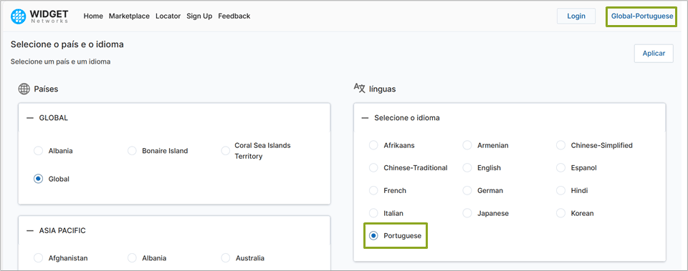
The Terms and Conditions screen now supports Portuguese translation for key action buttons, providing a localized and user-friendly experience for Portuguese-speaking users.
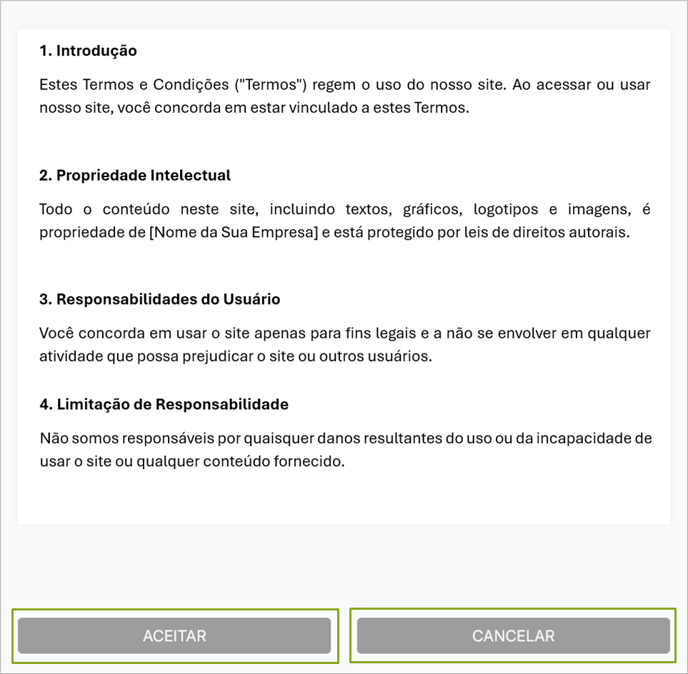
This enhancement ensures a fully localized experience for Portuguese-speaking users. When the portal language is set to Portuguese, the CONFIRM button is dynamically translated to "ACEITAR" and the CANCEL button to "CANCELAR", allowing users to understand and act on their choices without language barriers clearly. This improvement enhances usability, reduces ambiguity, and aligns with the platform’s commitment to delivering a consistent, language-specific interface across all critical user touchpoints.
- The portal language is set to Portuguese before logging in to the UPM portal.
- After logging in, the user is presented with the Terms & Conditions message.
- Since the portal language is set to Portuguese, the action buttons are automatically translated and displayed as ACEITAR and CANCELAR.
Origin of Feature
Customer request. This feature ensures that when the portal language is set to Portuguese, key action buttons are automatically translated, offering users a clear and localized Terms and Conditions experience.
CX Strategy Relation (6 S’s)
Portal User-Facing Benefits
This enhancement delivers a more inclusive and accessible experience for Portuguese-speaking users, reducing confusion and ensuring seamless acceptance or rejection of terms.
______________________________________________________________________________________
Country-Language Selection Restriction
Related Application(s)
Access Management
Feature Description
The Country-Language Selection Restriction feature allows portal administrators to configure valid country-language combinations at the portal level. These combinations are managed through Access Management, where administrators associate specific languages with each country.
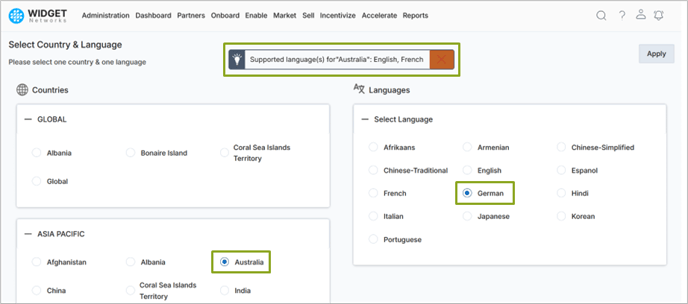
Whenever a user attempts to select a country with a language from the Country-Language page (either during login or while changing preferences post login), the system validates the selection against the configuration in Access Management:
-
- If the country-language association exists, selection is allowed, and the user can proceed.
- If the association does not exist, the system disables the Apply button and displays a validation message indicating the allowed languages for that country.
This enhancement ensures that users can only select country-language combinations that are properly configured in Access Management.
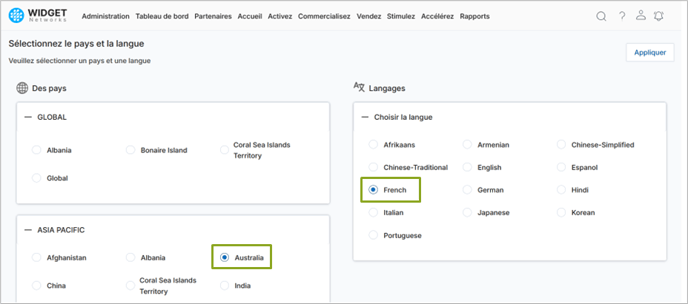
- Navigate to the Country-Language page and attempt to select Australia with German as the preferred language.
- The system displays a validation message stating that German is not associated with Australia and prevents the selection, indicating that only English and French are allowed.
- Next, select Australia with French.
- The Apply button becomes enabled, the selection is saved successfully, and the portal UI is updated and displayed in French.
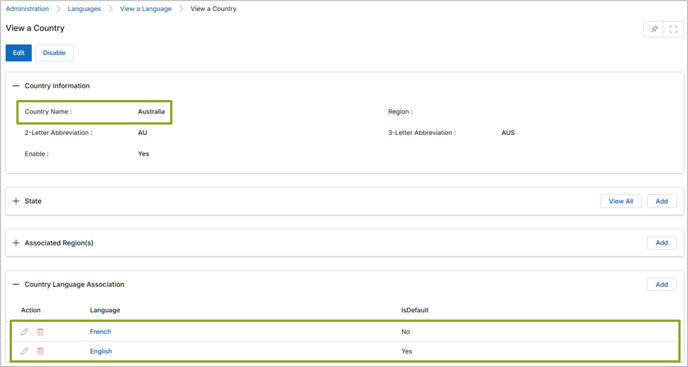
- Navigate to Administration > Access > Countries.
- Open Australia and review its configuration to verify that only English and French are associated as the allowed languages for this country.
Origin of Feature
Customer request. This feature was developed to prevent login issues and missing content caused by unsupported country-language selections and to centralize restriction management within Access Management.
CX Strategy Relation (6 S’s)

Portal User-Facing Benefits
This feature prevents users from selecting unsupported country-language combinations, ensures top menus and content display reliably, and centralizes configuration control with portal administrators for predictable, portal-wide behavior.
______________________________________________________________________________________
Enhanced Username Validation – Support for “+” Character
Related Application(s)
User Management
Feature Description
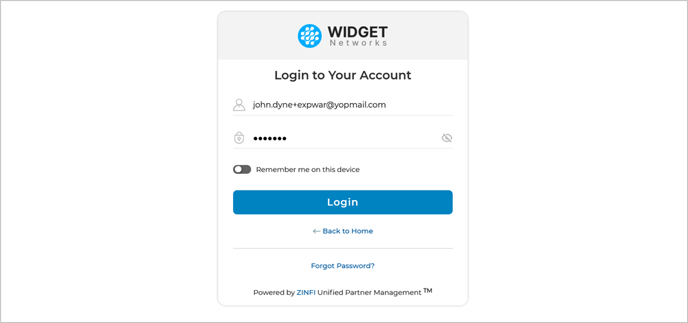
This feature enhancement ensures that usernames such as john.dyne+expwar@yopmail.com are recognized as valid across all applications that depend on username verification. The update creates consistency across the platform by applying the same validation logic to every point where usernames are used or modified.
This enhancement impacts the following areas:
- User Login – Users can log in using usernames containing the “+” character without encountering validation errors.
- Password Reset – The reset process correctly identifies usernames with “+” and sends password recovery emails accordingly.
- Username Change – Users can update their usernames to include the “+” symbol, provided they meet all other naming criteria.
- User Creation (Admin or Self-Registration) – Admins and new users can create accounts using usernames with “+”.
This improvement delivers a unified experience by aligning username handling across the platform with modern email and identity management standards.
Origin of Feature
Customer request. This enhancement was developed to align username validation logic with standard email address formats and ensure consistent handling across all authentication and user management workflows.
CX Strategy Relation (6 S’s)

Portal User-Facing Benefits
This feature fixes the user experience and flexibility by allowing modern, email-based usernames that include the “+” character - commonly used for email filtering or account tagging. It ensures seamless login, password reset, and user management operations without validation interruptions.
______________________________________________________________________________________
Translation Support for Sign-Up Pages
Related Application(s)
User Management
Feature Description
The Translation Support for Sign-Up Pages enhancement enables full localization of the user registration experience across the portal. Previously, the sign-up page displayed content only in the default language, limiting accessibility for users from different regions.
With this enhancement, all text, labels, buttons, and messages on the registration page are now fully translated into the portal’s defined languages. This ensures that new users can complete the sign-up process in their preferred language, improving usability, accessibility, and overall user experience.
No functional changes have been made to the registration process itself; this feature focuses solely on localization and translation of existing elements.
- Go to the Country-Language page and set the preferred language to e.g. German.
- Navigate to the portal’s Sign-Up page.
- Localization applies automatically based on the user’s country-language selection, ensuring consistent experience across regions.
- All text elements - including field labels, placeholders, buttons, and system messages - are now fully translated according to the selected portal language.
Origin of Feature
Customer request. This enhancement aimed at providing a localized registration experience for users across multiple regions.
CX Strategy Relation (6 S’s)

Portal User-Facing Benefits
This feature ensures that the sign-up experience is accessible, clear, and intuitive for users in all supported languages, reducing entry barriers and improving global usability.
______________________________________________________________________________________
Country-Language Selection in the Mobile App
Related Application(s)
Mobile Responsive Applications
Feature Description
The Country-Language Selection in the Mobile App fix ensures that users accessing the portal via mobile devices see content in the correct language and country configuration, consistent with their assigned profile settings.
Previously, the country-language selection worked correctly on desktop browsers but failed to apply dynamically on mobile views, causing content to default incorrectly or ignore the user’s assigned language. This enhancement resolves that issue, ensuring that mobile users now experience the same dynamic default behavior as desktop users.
Key behaviors include:
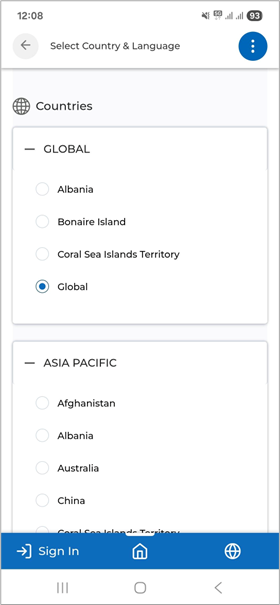
- Validated Country-Language Selection: Users can select from approved Country-Language combinations at login. The system validates this selection against their profile settings.
- Dynamic Default Application: If a user has only one valid combination, it is automatically applied. If multiple valid options exist, the system selects the latest one as default.
- Fallback: The system defaults to Global – English if no valid combination exists.
- Consistent Portal Display: After login, all menus, dashboards, and content display correctly according to the selected Country-Language.
This fix ensures a seamless mobile experience and aligns mobile behavior with desktop portal settings.
Origin of Feature
Customer request. The original mobile implementation did not dynamically enforce Country-Language selection, leading to inconsistent experiences.
CX Strategy Relation (6 S’s)

Portal User-Facing Benefits
This fix ensures that mobile users experience correctly localized content, improving usability, reducing confusion, and maintaining consistency with desktop portal behavior.
______________________________________________________________________________________
|
Feature Name |
Application(s) |
CX Strategy Relation |
User Type(s) |
|
Configurable Date-Time Format |
Access Management |
Sufficiency |
Admin |
|
Generic Hash Codes in CMS Editor |
Alerts & Notification Management |
Sufficiency |
Admin |
|
Configurable Assessment Retake Limit |
Learning Management |
Sufficiency |
Admin, Partner |
|
Email Report Drill - Through Capability |
Business Intelligence Reports |
Sufficiency |
Admin, Partner |
|
Predictive Search |
Generic |
Speed |
Admin, Partner |
|
ZIP File Support and Preview in Content Library |
Content Library Management |
Simplicity |
Admin, Partner |
|
Community Event Types and Color Codes |
Community Management |
Simplicity |
Admin, Partner |
|
Create and Manage Community Calendar Events |
Community Management |
Sufficiency |
Admin |
|
Support for Media Files Attachments to Community Calendar Events |
Community Management |
Sufficiency |
Partner |
|
System Emails - View in Browser |
Alerts Management |
Sufficiency |
Admin, Partner |
|
Partner Organization - Direction & Distance in Marketplace |
Marketplace Management |
Sufficiency |
Admin, Partner |
|
Fixes and Patches |
|
|
|
|
Partner Locator – Multi-Lingual Support |
Marketplace Management |
Sufficiency |
Admin, Partner |
|
Terms and Conditions – Portuguese Button Translation |
CMS Management |
Sufficiency |
Admin |
|
Country-Language Selection Restriction |
Access Management |
Security |
Admin |
|
Enhanced Username Validation – Support for “+” Character |
User Management |
Security |
Admin, Partner |
|
Translation Support for Sign-Up Pages |
User Management |
Sufficiency |
Partner |
|
Country-Language Selection in the Mobile App |
Mobile Responsive Applications |
Stability |
Admin, Partner |