
Version Summary
Summary Description
The UPM 24.4 Release introduces several significant enhancements to support the Partner Journey in the ZINFI Unified Partner Management (UPM) platform. These enhancements help streamline processes across the Administration, Onboarding, Enablement, Marketing, Sales, Incentive, and Acceleration phases.
Administration
- Enable/Disable Countries: This upgrade gives admins greater flexibility and control over managing country configurations. By allowing countries to be easily enabled or disabled, administrators can streamline how countries are displayed throughout the UPM platform, including in language pages, dropdown lists, and other fields. This ensures more effective localization management, which is crucial in supporting partners globally.
- Application Settings: Admins can now define and manage default values for various application fields, ensuring consistent configurations across all UPM applications. This centralized control simplifies administration and helps businesses scale their partner ecosystems efficiently.
- Clone Workflows: Clone workflows offer administrators an efficient way to replicate existing workflows for add-on edits, reducing setup time for new workflows. This ensures that consistent and optimized workflows are now readily available across the Platform, allowing for easy automation of business processes.
- Account-Lockout Security Upgrade: Protecting sensitive partner information is critical during enablement. The upgraded account-lockout feature adds a layer of security by locking accounts after five failed login attempts, preventing brute force attacks. Including real-time feedback and automatic reset mechanisms after successful login ensures a balance between security and usability for partners.
- Cookie Consent Management: The hot-rod feature enables ZINFI Platform users to manage their cookie preferences in compliance with privacy regulations. Users can select "Accept All Cookies" through a user-friendly interface or access "Cookie Settings" to customize preferences.
Reports
- Power BI Q&A Integration: This integration with all out-of-the-box (OOTB) reports in ZINFI UPM allows users to interact with data through natural language queries. Users can type questions about their data, and Power BI generates visualized answers instantly. The tool dynamically creates charts and graphs, helping users quickly uncover insights and trends. This functionality is designed to enhance decision-making by enabling easy data exploration.
- Integration of External Power BI Instance Reports: Admins can import external Power BI instance reports within the UPM Report Application. This feature allows admins to import and publish reports with visibility settings for different user roles (Admins, Partner Admins, and Partners) and organize reports through menu association. The integration simplifies access to Power BI, allowing admins to securely configure environments by providing necessary credentials, define report visibility, and set up row-level security for efficient report management.
My Account
- SSO Users – Country Language auto-set as Preferred: This feature enhances the user experience by automatically populating the Preferred Country and Preferred Language fields in the My Account section based on the user's selections during Single Sign-On (SSO). This ensures that users have a seamless experience across sessions, with consistent access to the appropriate top menu and translated pages.
Onboard
- Configurable Dynamic Hashtags in the Contract Templates: The capability to configure contract templates with dynamic hashtags enables administrators to create highly personalized and flexible contract templates. This innovation streamlines contract customization by automating content generation, reducing manual effort, and ensuring contracts are consistently tailored for each partner. This feature enhances the efficiency of contract management and strengthens partner relationships.
Enable
- Tracking External Views of Content Library Files: This enhancement allows for comprehensive tracking of content views, including those accessed via external URLs, without requiring users to log into ZINFI UPM. The View Counter automatically increments with each access, providing better visibility into content performance and engagement metrics for Admins and Partners.
- Public/Private Content URL: This feature allows administrators to toggle content visibility between public and private easily. When set to public, anyone can access content without a login; when private, only authenticated users can view sensitive documents. This flexibility helps manage access control based on content sensitivity.
- Folder Based Search Option in Card View with Category Tree: This new search functionality enables users to conduct targeted searches within specific folders, improving document discovery and efficiency. Administrators can enable or disable this feature through Portal Settings, allowing for adaptability based on organizational needs. This approach is seamlessly integrated across all applications with a card view, enabling users to effectively search for content within folders using the category tree.
Market
- Global Search enhancement: The improved Global Search functionality provides partners with intuitive and advanced search capabilities. Features like phonetic search, auto-completion, and fuzzy search allow partners to find the resources, marketing materials quickly, and assets they need, making it easier to execute marketing campaigns efficiently.
Sell
- Clone Workflows: The expanded Workflows Application further supports partners in the sales journey by enabling cloned workflows for deal registration and sales processes, ensuring consistency and speeding up deployment for sales teams. This helps streamline partner efforts in managing deals and closing opportunities faster.
Incentivize
- Application Settings & Security Enhancements: Managing default configurations for incentive programs and ensuring partners can access the necessary resources securely are now more efficient with the upgraded application settings and account-lockout features. These upgrades support a smooth rollout of rebate programs, commissions, and MDF management.
Accelerate
- Scalability and Customization: Businesses can scale their partner programs efficiently with the Country Application and Application Settings enhancements. These features allow businesses to easily add new partners from different regions while maintaining centralized configurations and security settings that accelerate partner engagement and growth.
Fixes and Patches
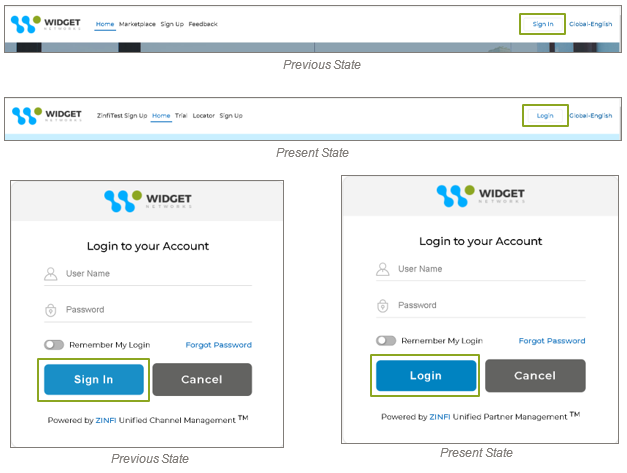
- Consistent use of ‘Sign in’ and ‘Login’ across Applications: All "Sign in" instances have been standardized to "Login" throughout the platform, ensuring a uniform terminology that enhances user experience.
- Cosmetic Upgrades (UI/UX):
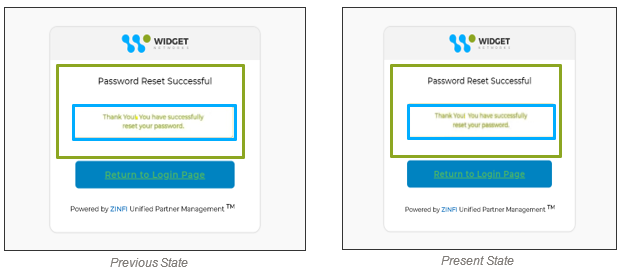
- Label Update: The punctuation in the "Password reset successful!" message has been corrected to remove the comma after the exclamation mark, providing a polished user experience.
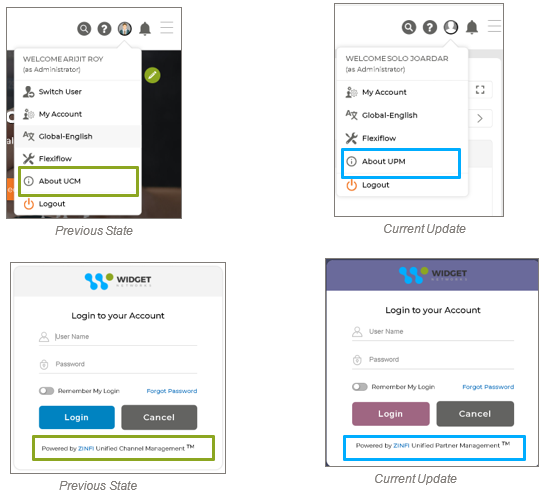
- UCM to UPM: All references to "Unified Channel Management" have been replaced with "Unified Partner Management" across the platform, ensuring consistent branding and terminology.
UPM 24.4 Features
Enable/Disable Countries
Related Application(s)
Access Management
Feature Description
The UPM 24.4 Release brings enhancements to ‘Countries’ within applications. The Country application stores all data related to countries used across the platform, including language pages, related lists, and dropdown areas, and acts as a dependent field for States. Clients often face issues with changed country names or not requiring certain countries for user access. Now, countries can be easily managed by enabling or disabling them as needed.
- To have an understanding of this feature, navigate to Administration > Access > Countries. The View Countries page contains all the generated ‘Countries’.
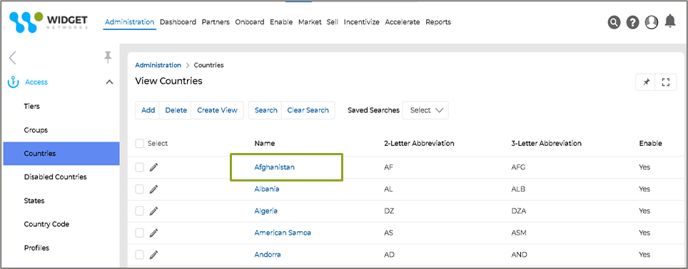
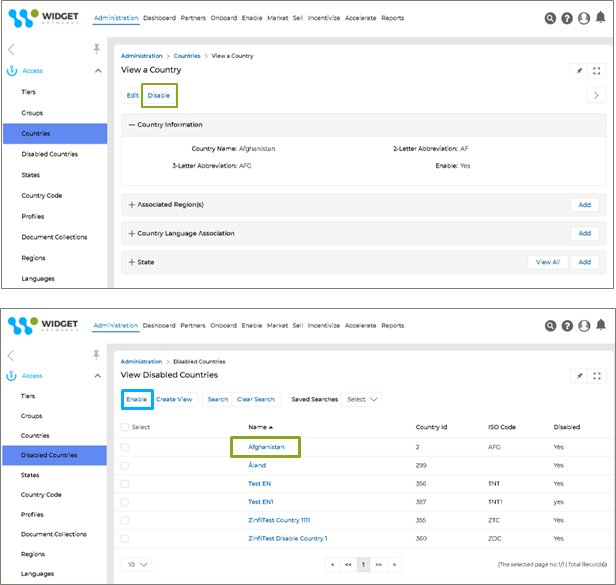
- To disable a country, navigate to the details page of the specific country and click the "Disable" button. The country will then be removed from the "View Countries" page and added to the "View Disabled Country" list, which can be accessed by going to Administration > Access > Disabled Country
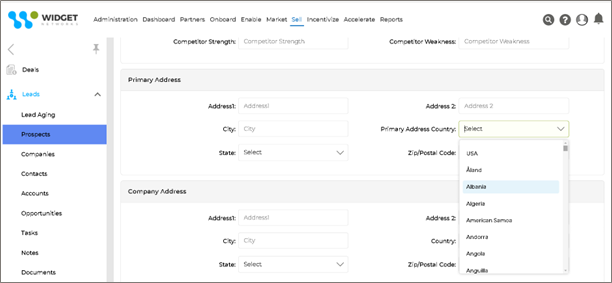
- When a country's name is disabled, it will not be displayed when creating new records. The image below demonstrates that the country name 'Afghanistan’, which has been disabled, does not appear in the dropdown list for the 'Primary Address Country' field while creating a new prospect .
- The disabled country can be enabled by clicking the ‘Enable button. The enabled country will appear on the "View Countries" page, accessible via Administration > Access > Countries as shown in the image below .
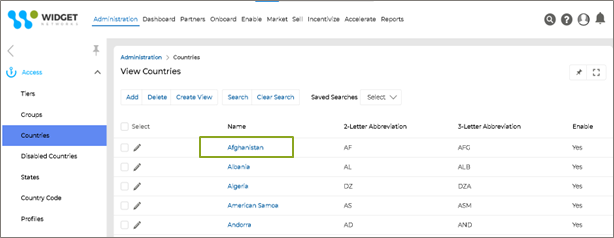
- When a country name is enabled, it will be displayed when creating new records. The image below shows the country name 'Afghanistan', which has been enabled, appearing in the dropdown list for the 'Primary Address Country' field while creating a new prospect.
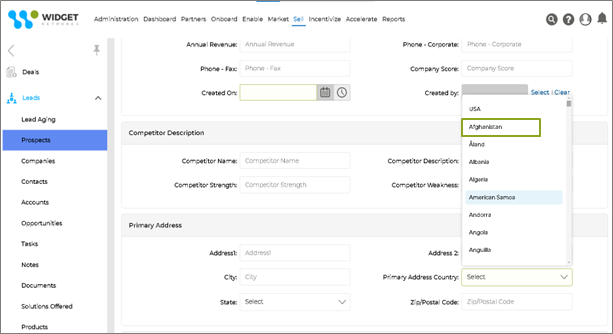
Origin of Feature
Customer request. The feature is requested for Admins to enable and disable the countries as per their requirements.
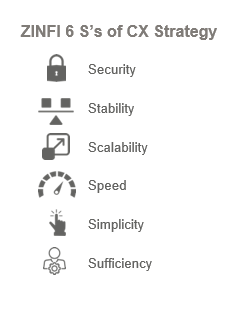
CX Strategy Relation (6 S’s)
Portal User-Facing Benefits
The feature allows Admins to enable and disable the countries per their requirements.
______________________________________________________________________________________
Application Settings
Related Application(s)
CMS Management
Feature Description
Entity-level default settings refer to pre-configured settings defined for UPM entities (users, partners, or records) while creating or editing entity records, streamlining the management of default application attributes through centralization. This feature simplifies entity management by ensuring a unified experience, minimizing errors, and improving the consistency of user interactions across the platform.
Admins can manage entity-level settings from a single interface, applying them consistently across the platform. This streamlines the process of setting up default settings by allowing predefined configurations to be applied automatically during entity creation or modification.
Admins can assign default values for fields like a user’s primary group, ensuring that new users or entities automatically adopt the right attributes, such as role assignments or reporting structures. This reduces manual intervention and ensures uniformity across records. The feature allows toggling between enabled or disabled settings, giving administrators flexibility in managing field values based on the organization's evolving needs.- To explore this feature, navigate to Administration > CMS > Application Settings. The ‘Application Settings’ page displays all previously created settings.
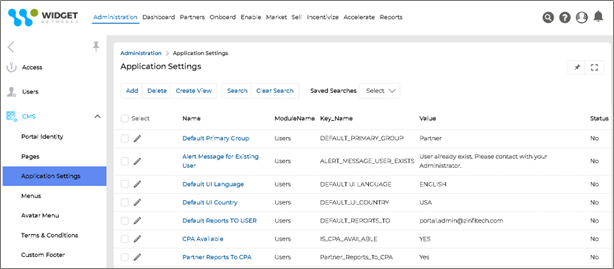
- To view the details of an existing 'Application Setting,' simply click on the name of the specific setting. Click the' Add' button to create a new 'Application Setting' for a particular module. If you need to modify an existing setting, click the pencil icon next to the corresponding 'Application Setting.'
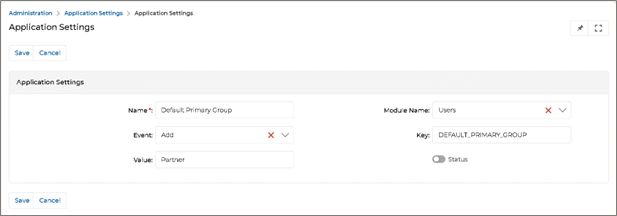
The fields utilized to configure an 'Application Setting' are outlined below:
-
- Name – Provide the Name of the specific ‘Application setting’.
- Module Name – Select the Application Name for which we want to define the App setting.
- Event – Select the specific record operation to trigger the configuration. The available options are Add and Edit.
- Key – The Field of the Application for which we want to set the default value.
- Value – Enter the default value for the Application - Key/Field defined above.
- Status – Use the toggle switch next to 'Status' to activate or deactivate the 'Application Setting' as needed.
- Save – After filling in all the information, click the Save button.
Example Use Case:
The image above displays an 'Application Setting' for the user application so that the user's primary group will automatically be set to 'Partner' whenever a new user is added.
Here's a breakdown of the key elements:
- Module Name: This setting applies to the 'Users' application, affecting user-related configurations.
- Event: The event is set to 'Add', indicating that the configuration will be triggered when a new user is created.
- Key: The 'Key' is identified as DEFAULT_PRIMARY_GROUP, representing the field—the default Primary Group (of the User) attribute—that will be automatically populated with the default value.
- Value: The default value assigned. When a new user is added, their primary group will automatically be set to 'Partner'.
- Status: The toggle switch shows that this application setting is activated (enabled), meaning it is in effect.
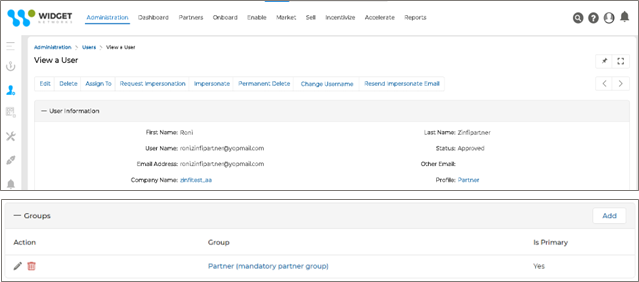
The image below shows that when a new user is created, it is automatically assigned to the default Primary Group, designated as ‘Partner,’ defined in the ‘Application Setting.’ This ensures that all newly registered users are seamlessly auto-integrated into the system with the appropriate group association, streamlining their access and role within the organization.
Origin of Feature
This feature, which the customer requested, allows Admins to define and manage Application Settings from a centralized viewport location.
CX Strategy Relation (6 S’s)
Portal User-Facing Benefits
This feature allows administrators to define and manage Application Settings from a centralized viewport location.
______________________________________________________________________________________
Global Search Enhancement
Related Application(s)
Access Management
Feature Description
The Global Search Enhancement feature aims to significantly upgrade the existing search capabilities within the UPM system by introducing advanced functionalities that make searching more efficient and user-friendly. This enhancement will provide users with improved accuracy in search results, incorporating phonetic search options to account for variations in spelling and pronunciation and auto-completion features to suggest and complete search queries as users type. By leveraging these improvements, the Global Search Enhancement will enable users to find relevant information more quickly and accurately, streamlining their workflow and enhancing their overall experience within the UPM system.
- Clicking the Global Search icon will open the Search page.

- Clicking the drop-down menu associated with Applications will show the list of all the Applications associated with the User's Profile.
- The default value in the dropdown list is Everywhere. The User must select Everywhere or specific Application(s) from the list to search for any value. Selecting Everywhere enables the User to search values across all the applications listed in the dropdown while selecting specific application enables the user to search values associated with the selected application.
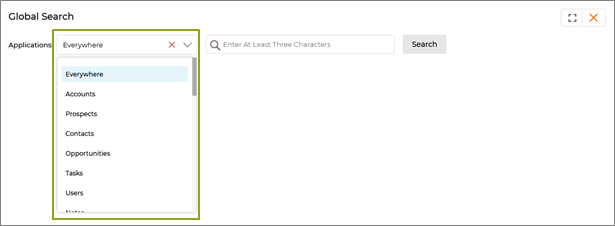
- At least three letters in the search field need to be keyed in to activate the Search button.

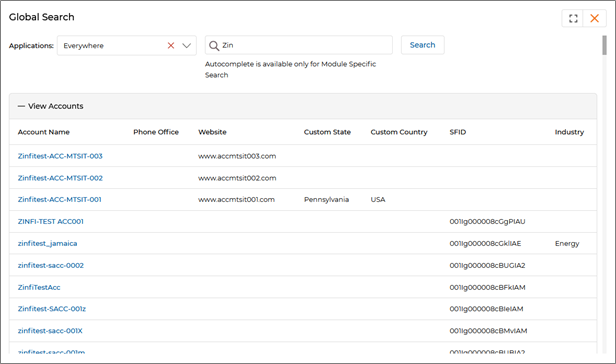
- In the above example, when the User chooses ‘Everywhere’ from the dropdown menu and enters 'Zin' as the search criterion in the second field, clicking the Search button will extract and display any records associated with the name 'Zin' across all applications as shown in the image below.
- Individual applications can also be selected, and records related to selected applications can be extracted.
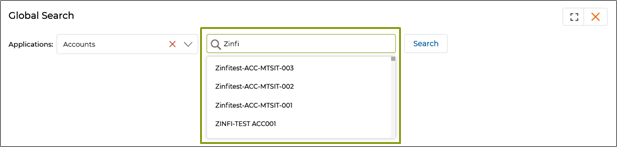
- While typing search criterion after selecting individual application, the search field will provide list of possible suggestions of searchable criteria that the user can utilize.
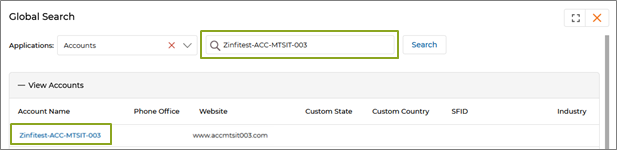
- Once a suggested search criterion is utilized, the searched record with parameterized value matching the searched text will be shortlisted.
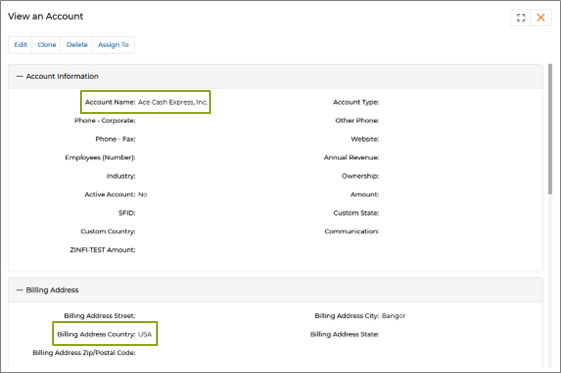
- Fuzzy search capabilities have also been integrated into Global Search. This feature allows you to search records by any parameter values of the records. In the image below search text has been given as “USA” in the Search field. Once the Search button is hit, the list of records with parameterized values matching the searched text will be shortlisted.
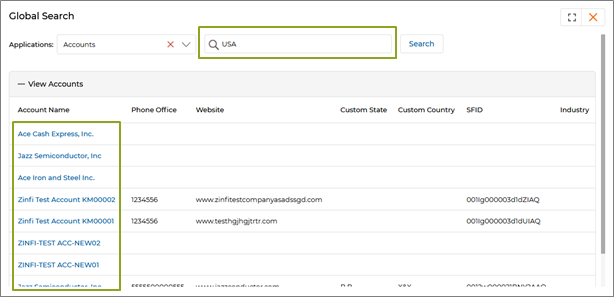
- By using the above-mentioned search criteria, the user can search records which contain ‘USA’ in it. If the user goes to the details page of any record, he will find ‘USA’ in it.
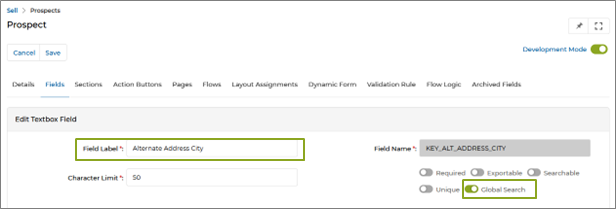
- Global Search functionality of field related to any application listed in Global Search can be enabled/disabled from Workflow.
- The user needs to go to the Workflow and either enable or disable Global Search by using the associated toggle key.
- Enabling toggle key will make the field available for Global Search while disabling the toggle key will remove the field from Global Search.
Origin of Feature
Customer request. The feature is requested to enhance Global search capabilities.
CX Strategy Relation (6 S’s)
Portal User-Facing Benefits
The feature allows Admins and Partners to use enhanced Global search functionalities.
___________________________________________________________
Account-Lockout Security Upgrade
Related Application(s)
Users and Group Management, My Account
Feature Description
The key benefits of the account lockout feature include enhanced security and improved user management. By locking the account after five consecutive failed login attempts, the system effectively mitigates the risk of brute force attacks and unauthorized access attempts, safeguarding user data and system integrity. The real-time feedback, showing the number of remaining attempts before the lockout, helps users avoid accidental account lockout and provides clear guidance on how many attempts they have left.
Automatic resetting of failed attempts upon successful login and the 24-hour-based automatic unlock mechanism ensure a balanced approach to security and user convenience, reducing the need for administrative intervention while maintaining robust protection against unauthorized access.
- Once the user makes his first attempt to log in to the UPM using the wrong password, a message will appear stating that he has four attempts pending before the account gets locked .
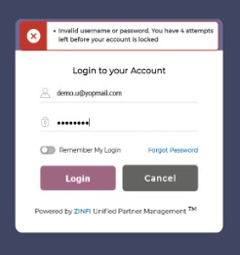
- The message is not editable by Admin.
- The number of failed login attempts will automatically reset once the user successfully logs in.
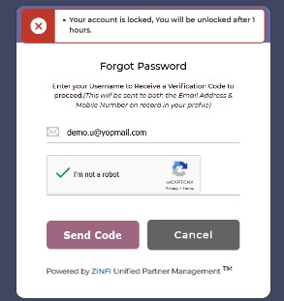
- If a user enters the wrong password 5 times, their account will be default locked for 24 hours. After the 24-hour default period, the user account automatically unlocks, and the user can log in again using the correct credentials .
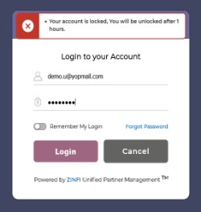
Note: The lockout duration can be configured from the backend.
For example, the image below shows that the account has been locked for only 1 hour instead of the default 24 hours. - The “Account-Locked” message will be displayed on both the Forgot Password and Login pages
Origin of Feature
Customer request. The feature is requested so that if the user uses the wrong passwords 5 consecutive times, the account will get locked, and a message will be displayed confirming the same. Automatically, the user account will be unlocked after the default lockout period of 24 hours.
CX Strategy Relation (6 S’s)
Portal User-Facing Benefits
Admin and Partners requested this feature so that their accounts would be locked if they used the wrong password five consecutive times, and automatically, the user account would be unlocked after the default lockout period of 24 hours.
______________________________________________________________________________________
Clone Workflows
Related Application(s)
Workflow Management
Feature Description
The workflow clone feature allows admin users to duplicate existing workflows in the Platform, aiding in a speedier approach to creating new workflows based on existing ones. When cloned by the Admin User, a Workflow will have the copied-over process flow information. The workflow clone feature simplifies the management of complex partner ecosystem operations, allowing administrators to quickly set up similar workflows for different partners (with custom business processes) without redundant effort
- To clone a specific Workflow, navigate to Administration -> Workflow -> Workflows. On the "View Workflows" page, click the name of the desired workflow that needs to be cloned.
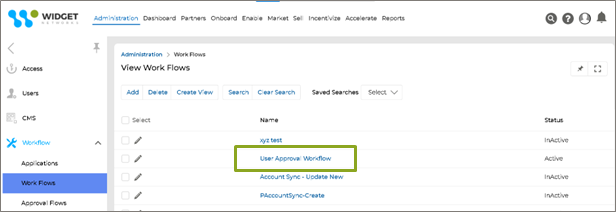
- Clicking the name of a specific workflow will redirect you to the "View Workflow" page. Selecting the Clone button will take you to the next page, where you must update the "Workflow Name". An error message will be displayed if an existing Workflow name is entered and the "Save" button is clicked, as shown in the image below.
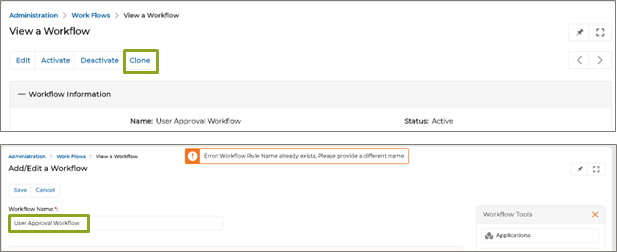
- Once Cloned, the Workflow can be re-edited with the desired updates and activated.
Origin of Feature
The customer requested the ability to clone an existing workflow.
CX Strategy Relation (6 S’s)
Portal User-Facing Benefits
The feature is only for admins to clone an existing workflow.
___________________________________________________________
Power BI Q&A Integration
Related Application(s)
Business Intelligence Reports
Feature Description
The integration of Power BI's Q&A functionality with all out-of-the-box (OOTB) reports in ZINFI UPM allows users to interact with data in a more intuitive way. With natural language processing (NLP), users can simply type questions about their data in plain language, and Power BI will generate visualized answers instantly.
The Q&A tool dynamically creates interactive visuals, transforming user queries into charts, graphs, and data visualizations. This process helps users quickly uncover patterns, insights, and trends within their data. Power BI adjusts the visuals in real-time as users ask follow-up questions, allowing users to zoom into specifics or view broader data trends.
The integration is powered by in-memory storage, ensuring fast response times and smooth data exploration. This capability provides a seamless experience for exploring business intelligence reports within ZINFI UPM, making it easier for users to make data-driven decisions quickly. For more details on how Power BI’s Q&A works, refer to the official documentation from Microsoft: Power BI Q&A Tutorial.
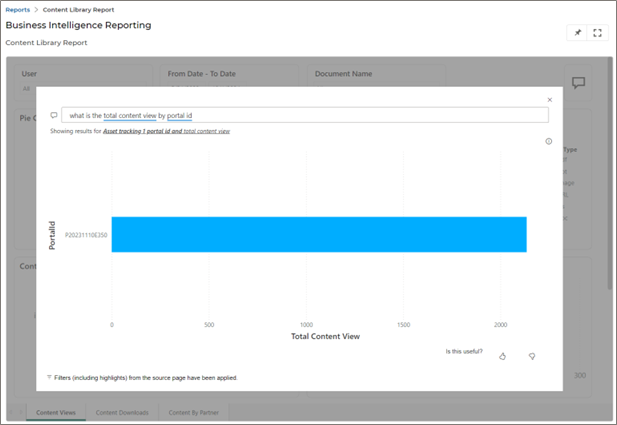
- To experience the prowess of Power BI Q&A, click Reports > Enable Reports > Content Library Report, which takes us to the Content Library Report page, where we find the Power BI Q&A icon.
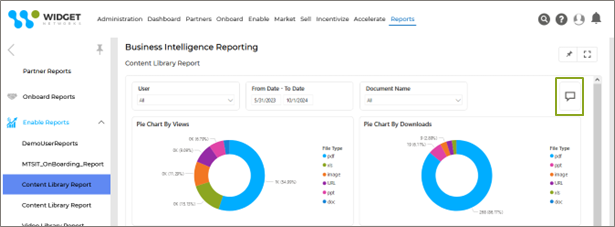
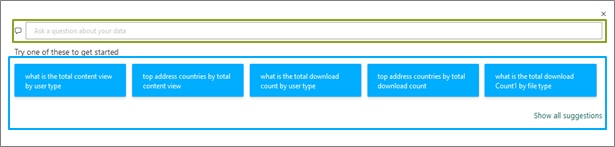
- Click the “Q&A” button in the image above, which opens the Power BI Q&A window.
- Q&A question field (highlighted in green): Enter your question in this box to see possible answers and suggestions from Power BI.
- Suggestions (highlighted in blue): Choose a question from a pre-populated list of suggestions generated by Power BI.
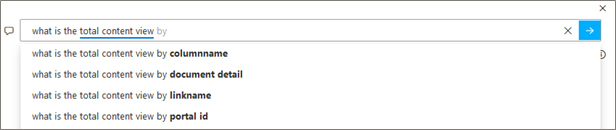
- As you type your question, Power BI Q&A shows relevant and contextual suggestions to help you quickly become productive with natural language. As you type, you get immediate feedback and results. The experience is like typing in a search engine.
- After typing and hitting enter – the insight report is generated and displayed automatically. Similarly, if you choose a question from the prepopulated list of suggestions, the insight report will be generated and displayed automatically.
Origin of Feature
Customer requested the integration of the Power BI Q&A feature.
CX Strategy Relation (6 S’s)
Portal User-Facing Benefits
The feature is for admins and partners to use the Power BI Q&A.
______________________________________________________________________________________
Tracking External Views of Content Library Files
Related Application(s)
Content Library Management
Feature Description
The hot-rod release enhances the View Counter feature in the Content Library Application, allowing content views to be tracked more comprehensively. This upgrade supports tracking views from external content URLs without requiring users to log into the ZINFI UPM platform.
Each time content is accessed via an external link generated using the 'Copy Document Link' button, the View Counter automatically increases by 1. This provides better visibility into how often externally shared content is accessed, making tracking content performance and engagement easier.
- After logging into the UPM as an Admin user, we click Enable > Content Library > Content Listings to reach the View Contents page, where all the Contents are listed.
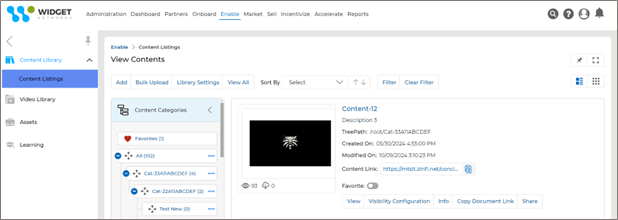
- In the listed Content, the View Counter is visible.
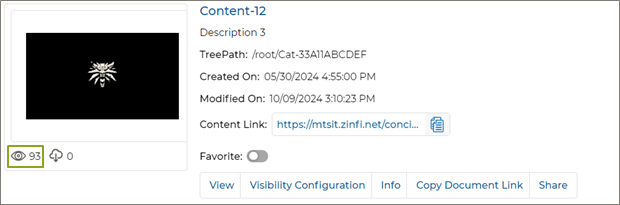
- View Counter — This is the Content’s total viewership. In the listed Content, the View Counter is represented by an ‘Eye’ icon below the thumbnail image. The numerical value indicates how often the Content has been viewed.
- With the upgraded feature, if the Content Link is shared with an external user, and the user opens the link (without logging into the Portal) – the View Counter increases by 1.

- Content is pasted and opened in a different browser without logging into UPM.
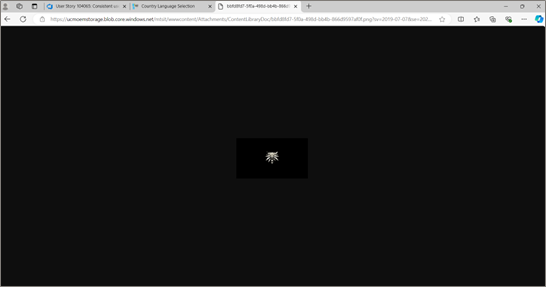
- Now, on refreshing the UPM Portal, the View Counter increases by 1.
- With the upgraded feature, if the Content Link is shared with an external user, and the user opens the link (without logging into the Portal) – the View Counter increases by 1.
Origin of Feature
Customer request. The feature is requested to track external views of Content Library files.
CX Strategy Relation (6 S’s)
Portal User-Facing Benefits
The feature allows Admins and Partners to view the number of times Content is viewed and/or downloaded externally.
______________________________________________________________________________________
Public/Private Content URL
Related Application(s)
Content Library Management
Feature Description
The 'Is Private' feature in ZINFI UPM introduces enhanced flexibility for managing content visibility via external URLs and access control. Administrators can now toggle public and private Content URL-view access for any content with a simple switch. This feature allows administrators to determine whether the content is openly accessible to all users or restricted to UPM-authenticated users based on its sensitivity or audience.
- Public Access: When the 'Is Private' setting is set to False, content such as marketing materials or public resources can be accessed by anyone via a public URL without requiring a login.
- Private Access: By setting 'Is Private' to True, access is restricted, ensuring that only authenticated users can view sensitive or internal documents.
This feature allows administrators to adapt access permissions quickly without complex configurations, providing tailored security for public-facing and confidential content.
- By default, the 'Is Private' field on the content's details page is set to False.
- In the listed Content, two counters are visible – View Counter and Download Counter.
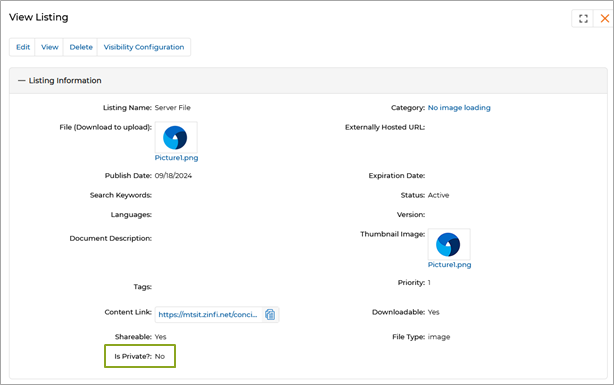
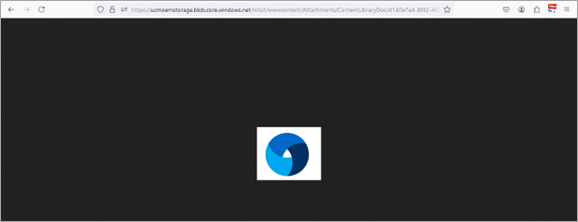
- When 'Is Private' is set to False, the generated link allows users to view or download the content externally without logging into the UPM portal.
- When 'Is Private' is set to True, the link generated won’t allow the user to view the content without logging in to the UPM Portal. The User will be re-directed to the UPM Login Page automatically.
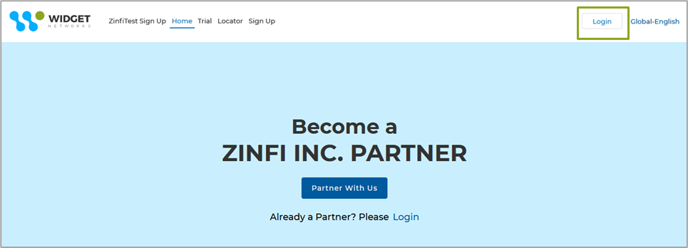
- When 'Is Private' is set to False, the generated link allows users to view or download the content externally without logging into the UPM portal.
Origin of Feature
Customer request. The feature is requested to manage content access via externally generated URLs.
CX Strategy Relation (6 S’s)
Portal User-Facing Benefits
The feature allows admins to configure content access via externally generated URLs.
______________________________________________________________________________________
Folder-based Search Option in Card View with Category Tree
Related Application(s)
Generic
Feature Description
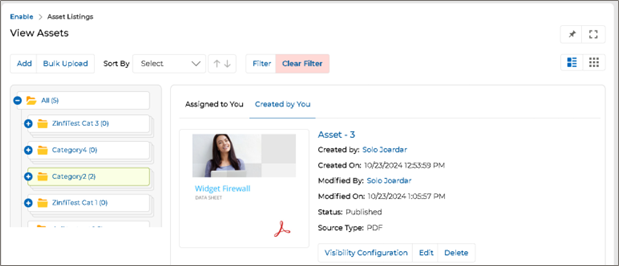
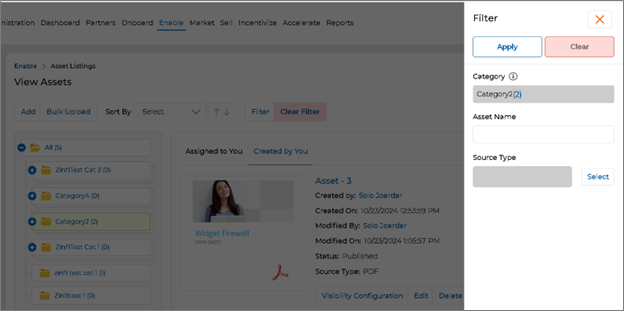
The folder-based search functionality enhances search capabilities by enabling users to locate records within specific folders, leading to more targeted and relevant results. This feature reduces the time spent navigating through unrelated content, allowing users to efficiently manage and access records within their chosen folders. This approach is seamlessly integrated across all applications with a card view, including Content Library, Co-Brandable Assets, and Learning, enabling users to effectively search for content within folders using the category tree.
Users can quickly retrieve the documents they need by focusing searches on known folder names, improving accuracy and productivity. The search function operates at lightning speed, making it an essential tool for users managing large volumes of content. Additionally, administrators can enable or disable this feature through Portal Settings, providing flexibility based on organizational needs.
Example: Content Library Search
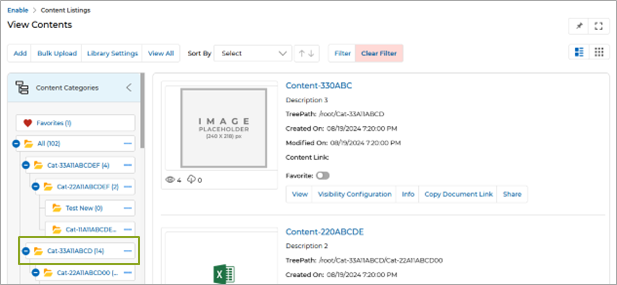
- To search for specific documents within a particular folder, select the category/folder by clicking on it in the collapsible tree panel on the View Contents page. For example, we have selected a folder (highlighted in green) where we want to search for specific documents.
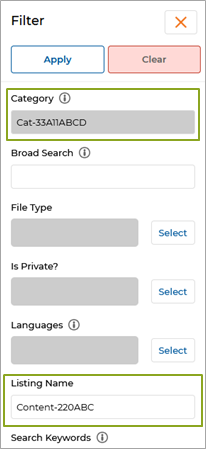
- After selecting the folder, click the Filter The selected folder’s name is automatically displayed in the Category field and the total number of documents within the folder is in parentheses.
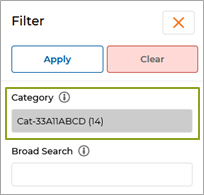
- We can now search for the document(s) we want within this folder. We mention the name of the document we want to retrieve in the Listing Name field and hit Apply.
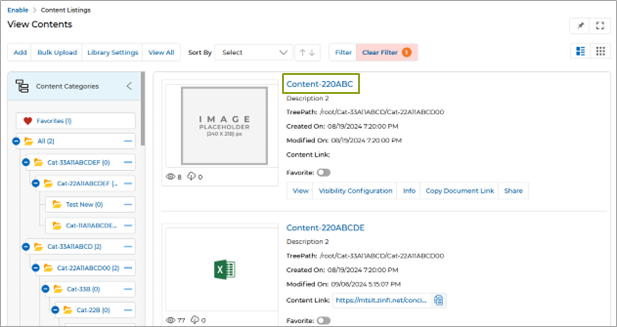
- The matching document from the selected Category is retrieved and displayed on the listing page.
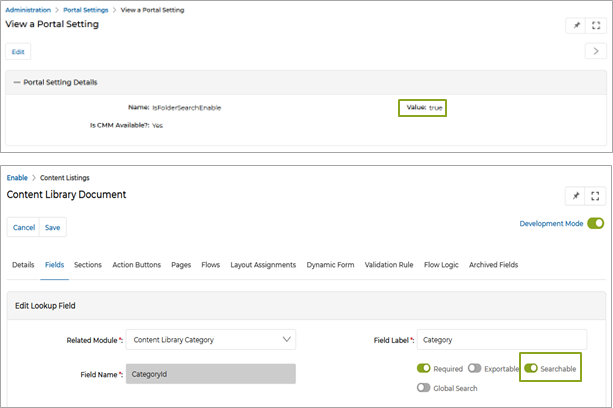
Note: To enable the folder-based search option, the Category lookup field must be marked as searchable in the Workflow application, and the ‘IsFolderSearchEnable’ setting must be set to "True" in the Portal Settings application.
Example: Co-brandable Asset Search
Origin of Feature
Customer request. The feature is requested to introduce a category/folder-based search option in the Content Library application.
CX Strategy Relation (6 S’s)
Portal User-Facing Benefits
The feature allows Admins to enable category/folder-based search options for users in the Content Library application.
______________________________________________________________________________________
SSO Users - Country Language auto-set as Preferred
Related Application(s)
My Account
Feature Description
This feature enhances the user experience by allowing Admins and Partners to view their previously selected Country and Language on the Country Language page. Users logging in via Single Sign-On (SSO) will be prompted to select their preferred Country and Language from the Country Language page. These selections will automatically populate the Preferred Country and Preferred Language fields within the Contact Information section of the My Account application.
This ensures that users consistently see the appropriate top menu and translated pages based on their preferences. The system saves these settings in the user account and browser cookies, providing a seamless experience across sessions. Additionally, the system automatically stores and applies the SSO user’s chosen Country and Language settings.
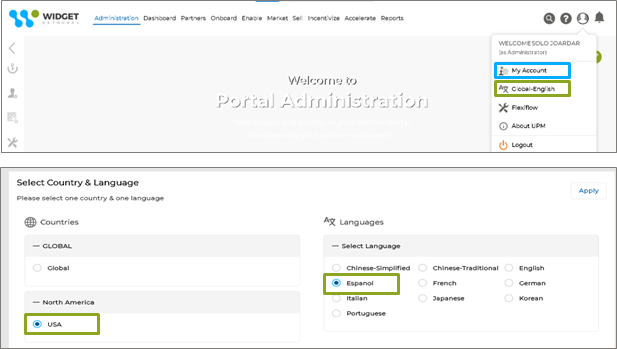
- To familiarize yourself with this feature, start by clicking the profile icon in the top right corner, and then select the ‘Country Language’ option, currently set to ‘Global English’. This will direct you to the Country Language page, where you can choose your preferred Country and Language. In this example, we’ve selected ‘Español’ as the language and ‘USA’ as the country.
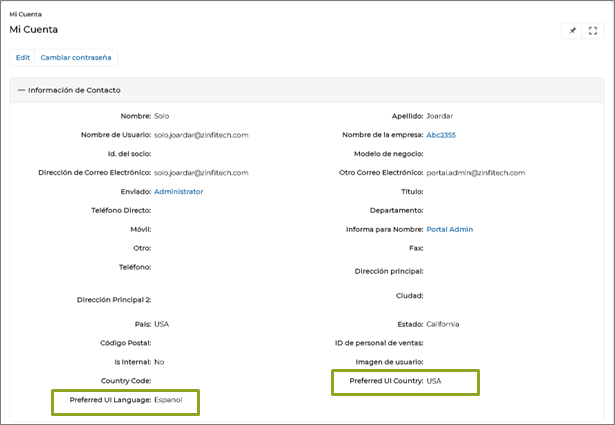
- After selecting the Preferred Country and Language and clicking the Apply button, the chosen settings will appear in the Contact Information section of "My Account". To access this section, click the profile icon at the top right corner to jump to "My Account" to open the My Account details page, where you can view the specified information for "Preferred UI Country" and "Preferred UI Language," as illustrated in the image below.
Origin of Feature
Customer Request. This streamlines the SSO - user experience by ensuring consistent language and regional settings.
CX Strategy Relation (6 S’s)
Portal User-Facing Benefits
This feature is for Admins and Partners. It prompts them to choose their Country and Language upon Single Sign-On (SSO) and automatically updates the Country/Language Preference Information in the My Account Details.
______________________________________________________________________________________
Configurable Dynamic Hashtags in the Contract Templates
Related Module(s)
Partner Contracts Management
Feature Description
When customizing a contract template, the UPM portal Administrator now has the flexibility to dynamically generate content for specific pre-configured sections in the Contract when received by a Partner. By incorporating designated hashtags or hashcodes, the system ensures that this partner information is automatically populated when the contract is viewed or signed by partners. These hashcodes are particularly useful for seamlessly including partner-specific details, such as contact information, directly within the contract document. This approach not only streamlines the process but also guarantees that each contract is automatically personalized.
- The Contract template is embedded with relevant hashtags to populate the Partner contact information dynamically when the Recipient receives it. The Contract template and the hashtags can be managed by the Admin only.
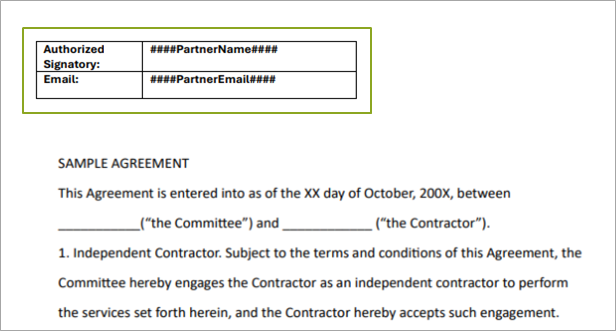
- Once the Contract template is assigned to the designated Partner, the Partner will view the template as shown in the image below with values derived in places of hashtags.
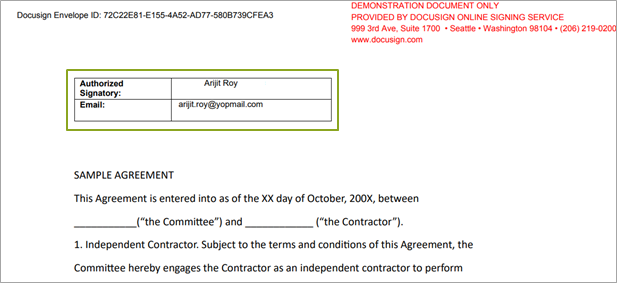
- Once the DocuSign-integrated Contract template is assigned to the designated Partner for sign-up, the partner will view the template as shown in the image below with values replaced in places of hashtags.
Origin of Feature
Customer request. The feature is requested to implement Dynamic Hashtags in the Contract Template page.
CX Strategy Relation (6 S’s)
Portal User-Facing Benefits
The feature is for Admins to implement dynamic hashtags in the Contract Template page and for Partners to view the Template with hashtags replaced with relevant values.
______________________________________________________________________________________
Cookie Consent Management
Related Application(s)
Users and Group Management
Feature Description
The Cookie Consent Management feature on the ZINFI platform enables users to manage their data-sharing preferences in compliance with privacy regulations. Through an intuitive interface, users can choose to accept, decline, or customize their consent settings across various cookie types.
Data tracking is categorized into:
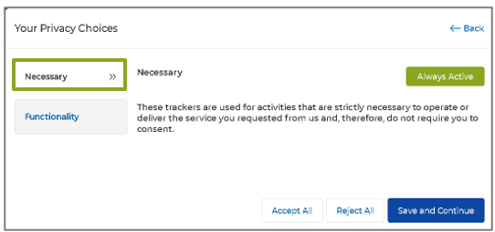
- Necessary Cookies — These trackers are used for activities that are strictly necessary to operate or deliver the ZINFI Platform services requested and, therefore, do not require consent. As already asked, they are essential for platform functionality and are always enabled.
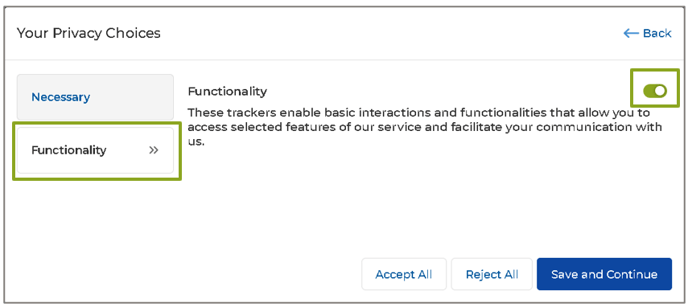
- Functionality Cookies — These trackers enable fundamental interactions and functionalities that allow users to access selected features of the ZINFI Platform service and facilitate communication with the ZINFI Team for better portal performance. Users can turn them on or off according to their preferences.
The Cookie Consent Notification Interface appears before and during login. In the pre-login stage, users have the option to dismiss this notification. Users may select "Accept All Cookies" to consent to all categories or click "Cookie Settings" to customize their preferences. Once they click “Save and Continue,” the platform will save these preferences, preventing the consent notification from reappearing in future sessions.
- Once the user opens the UPM Portal, the ‘Cookie Consent Notification Interface’ is displayed.
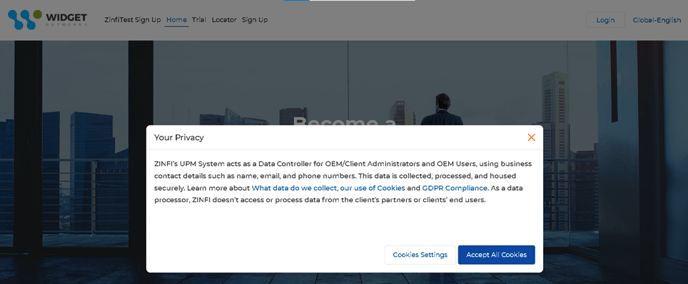
- The User can close the Cookie Consent Popup and proceed with Login. Once logged in, the User is now manually required to provide consent for cookie use.
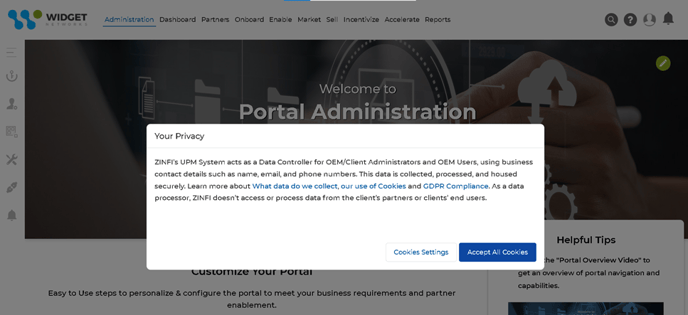
- Users are displayed with the ZINFI Platform Privacy Policies, which they can click from the Cookie Consent Manager Form (image above) to access the relevant policies hosted on the ZINFI official Website (https://www.zinfi.com/).
- Users can select either ‘Cookie Settings’ or ‘Accept All Cookies’.
- Accept All Cookies – Selecting ‘Accept All Cookies’ will provide the user’s consent to accept all cookies.
- Cookie Settings – Clicking ‘Cookie Settings’ will display a pop-up showing two Categories of Cookies for acceptance:
- Necessary Cookies—Necessary Cookies are essential for the system to function properly and are always active, with no option for the user to disable them. These cookies enable core system operations; without them, the system would not work as intended, and they need to be accepted.
- Functionality Cookies – Functionality Cookies enablement is optional; users can turn them on or off using the provided toggle key. These cookies are needed for enhanced features.
- Accept All – Grants consent to accept all cookies, including optional ones, to enhance the user experience and enable tracking and personalization features
- Reject All - Declines all the ‘Functionality’(optional) cookies, ensuring that only essential cookies necessary for the website’s functionality are enabled.
- Save and Continue – By clicking "Save and Continue," users consent to their chosen cookie preferences and proceed. Once cookie preferences are selected, the Consent Notification Interface will no longer be displayed, enabling users to tailor their cookie settings according to their needs.
Origin of Feature
Internal request. The feature is designed to obtain user consent for data tracking, enabling the software team to understand the portal's functionality comprehensively.
CX Strategy Relation (6 S’s)
Stability
Portal User-Facing Benefits
This structured approach ensures a user-friendly, transparent experience that meets privacy standards and respects the user's (Admin and Partner) choices regarding data collection and tracking on the UPM platform.
______________________________________________________________________________________
Integration of External Power BI Instance Reports
Related Module(s)
Business Intelligence Report
Feature Description
This feature enables admins to integrate their Power BI instance seamlessly with ZINFI’s Unified Partner Management (UPM) platform. It allows them to configure, manage, and host their Power BI reports directly within the UPM system. Admins can add, configure, and publish reports with defined visibility for Admins, Partner Admins, and Partners. The feature also supports reports menu association for organizing and accessing reports via the UPM platform.
This feature simplifies the report management process by allowing seamless integration between the Power BI environment and UPM. The integration will enable admins to configure their Power BI environment by providing tenant IDs, client IDs, and other necessary credentials. It ensures that external Power BI reports are easily configurable, accessible, and secure. Admins can define reports' visibility based on user roles, set up row-level security, and associate reports with the appropriate menu items in UPM for easy access.
To integrate an external Power BI Report:
- Navigate to the Report Zone by selecting Enable from the top menu.
- Click Report Configuration > View Reports, which takes us to the Manage Reports page, which lists all the reports.
- From the Manage Reports page, click the Add button to open the Power BI Configuration page. The Power BI Configuration page has four sections, which are described below:
Add Report Environment
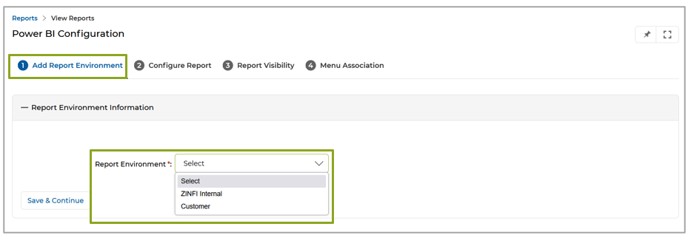
- In the Add Report Environment section, the User needs to select from the Report Environment dropdown either:
- ZINFI Internal, or
- Customer
Note:
- The "Report Environment" dropdown menu is locked and non-editable for all users except those with a "@zinfitech" domain. Admins logging in with a "@zinfitech" domain (ZINFI’s internal users) will have the option to select “ZINFI Internal” as a value in the "Report Environment" dropdown menu.
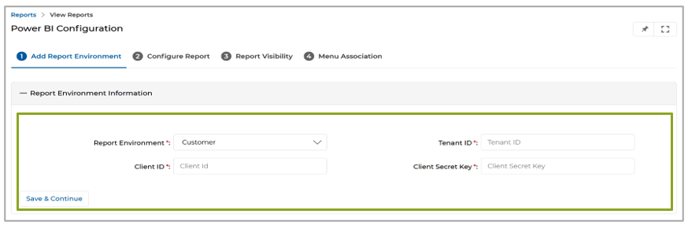
- External Customer Users (Customer Admins, Customer Partner Admins, Customer Internal users, Customer Partner Users) without a "@zinfitech" domain will only be able to configure the Report Environment. They won’t have access to “ZINFI Internal Report Environments”, as shown in the image below:
- Selecting ‘ZINFI Internal’:
Selecting ‘ZINFI Internal’ will automatically connect to the ZINFI Reporting Environment and allow us to go directly to the Configure Report section. - Selecting ‘Customer’:
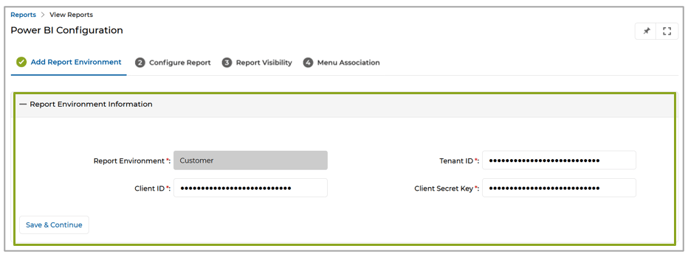
Selecting ‘Customer’ from the Report Environment dropdown will prompt the Client Admin to provide credentials for connection to their Report Environment:
-
- Tenant ID: Enter the Tenant ID (alphanumeric) associated with the Power BI instance.
- Client ID: Provide the Client ID (alphanumeric).
- Client Secret Key: Provide the Client Secret Key (alphanumeric).
- Once done, click the Save & Continue button in the Configure Report section.
Configure Report
- The user must select the desired workspace from the Report Workspace This list is dynamically populated from the selected Report Environment Power BI service.
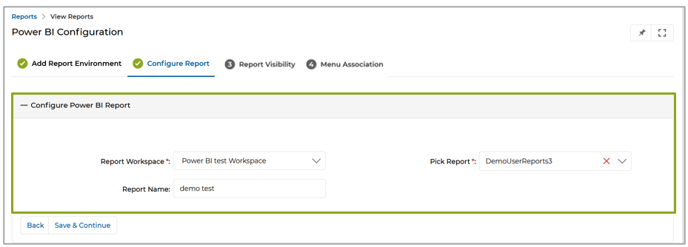
- Selecting a workspace from the Report Environment dropdown opens other fields where users must select/provide values.
-
- Pick Report: The dependent dropdown lists reports within the selected workspace. Select the specific report from the dropdown.
- Report Name: The report name auto-populates based on report selection but can be edited for reference purposes.
- Once done, click the Save & Continue button, which takes us to the Report Visibility section.
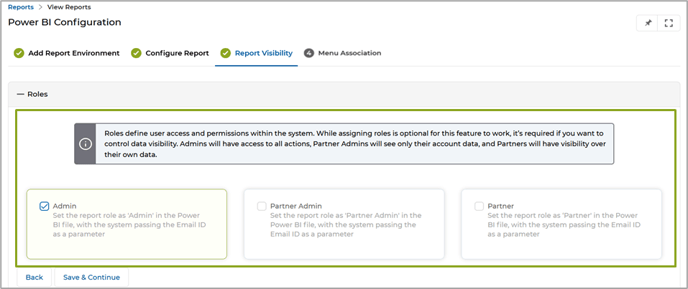
Report Visibility
- Upon reaching this section, the user will configure visibility through Power BI RLS (Row Level Security). Visibility will be role-based. A report can be configured with multiple role-based visibility.
-
- Admin: Grants visibility to all admin-internal and partner accounts’ data.
- Partner Admin: The Partner Admin will see only his/her account's data.
- Partner: Limits visibility to the partner’s own data.
- Once done, click the Save & Continue button to take us to the Report Menu Association
Menu Association
- In this section, the user needs to select values from the following dropdown menus:
-
- Associated Left Menu: Select the desired left menu from the dropdown under the Reports zone where we want to enable the visibility of the Report.
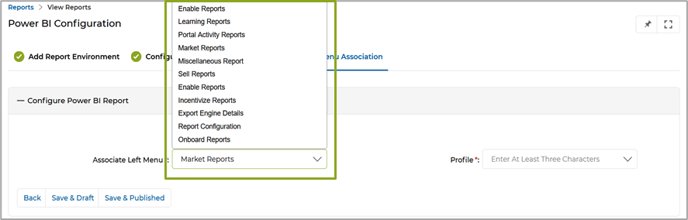
- Profile: Choose relevant profiles from the "Profile" dropdown to associate the report’s left menu with specific user profiles, adhering to the out-of-the-box (OOTB) menu access management principles.
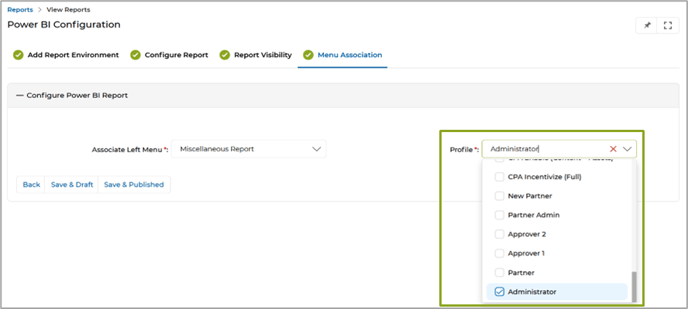
- Associated Left Menu: Select the desired left menu from the dropdown under the Reports zone where we want to enable the visibility of the Report.
- Once done, click Save & Draft or Save & Publish per requirements.
-
- Save & Draft - keeps the report in an "Inactive" state, making it invisible on the platform, which can later be activated and made visible on the platform.
- Save & Publish - saves the report in an "Active" state, making it visible on the platform with all configurations applied.
-
- Once published, the report will be available in the selected left menu, as shown in the image below.
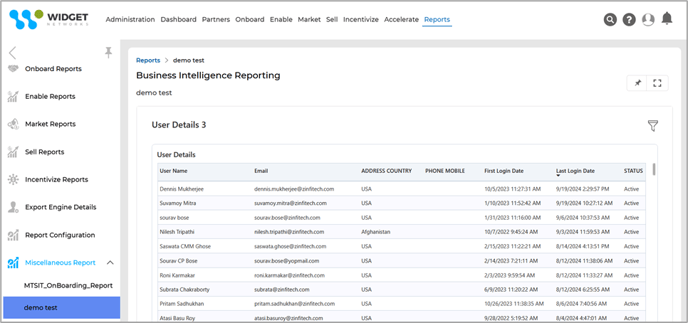
Origin of Feature
Customer request. The feature is designed to implement the integration of Power BI Report with ZINFI UPM.
CX Strategy Relation (6 S’s)
Scalability
Portal User-Facing Benefits
The feature allows admins to integrate Power BI Report with ZINFI UPM.
______________________________________________________________________________________
Fixes
Consistent use of Sign in and Login across the application
Related Application(s)
Users and Group Management
Feature Description
Currently, "Sign in" and "Login" are used interchangeably across the UPM platform, resulting in inconsistency that can confuse users and impact the user experience. To address this, the platform has been standardized with uniform terminology by replacing all instances of "Sign in" with "Login" to ensure consistency. This update has been implemented on the Landing and Before Login pages, where "Login" will now be used exclusively. The term "Logout" will remain unchanged. The platform aims to deliver a more unified and seamless user experience by standardizing this key terminology.
- The images below illustrate the changes that have been implemented, depicting the previous state and the current updates.
Origin of Feature
Customer request. The feature is requested to ensure a consistent user experience regarding the platform's login terminology.
CX Strategy Relation (6 S’s)
Portal User-Facing Benefits
The feature ensures a consistent user experience for both admins and partners by standardizing the terminology across the platform, replacing all instances of "Sign in" with "Login."
______________________________________________________________________________________
Cosmetic Upgrades (UI/UX) - Label Update
Related Application(s)
Users and Group Management
Feature Description
ZINFI UPM offers a straightforward process for resetting passwords using Email and SMS. In the final step users simply enter the new password twice and click the "Reset Password" button. If the reset is successful, a "Password reset successful!" message is displayed by the ID Server. Previously, the message included a comma after the exclamation mark, which could have affected all multi-tenant portals. This issue has been resolved in the UPM 24.4 release, ensuring the message no longer contains a comma after the exclamation mark. The images below illustrate the changes that have been implemented, depicting the previous state and the current updates.
- The images below illustrate the implemented changes, showcasing the previous state alongside the current updates.
Origin of Feature
Customer request. The feature originated from the need to correct the punctuation in the "Password reset successful!" message, removing the unnecessary comma after the exclamation mark, as highlighted in the images comparing the previous state and the current updates.
CX Strategy Relation (6 S’s)
Portal User-Facing Benefits
The feature ensures the user gets a more polished and professional user experience, with corrected punctuation in the "Password reset successful!" message, enhancing clarity and consistency across the platform.
___________________________________________________________
Cosmetic Upgrades (UI/UX) - UCM to UPM
Related Application(s)
All Applications
Feature Description
The platform has been updated to replace all instances of "Unified Channel Management" with "Unified Partner Management" (UPM). This change ensures consistency across the entire platform, reflecting the updated terminology. All references to "Unified Channel Management" have been replaced with "Unified Partner Management" wherever they appear.
- The images below present the implemented changes, highlighting the previous state compared to the current updates.
Origin of Feature
Customer request. The feature originated from the necessity to ensure a consistent experience of UPM, or Unified Partner Management, for all applications throughout the entire portal.
CX Strategy Relation (6 S’s)
Portal User-Facing Benefits
The feature ensures that both Admins and Partners benefit from a seamless and uniform experience across all applications, with consistent terminology and branding for UPM, or Unified Partner Management, throughout the entire platform.
______________________________________________________________________________________
Features Summary Chart
|
Feature Name |
Application(s) |
CX Strategy Relation |
User Type(s) |
|
Enable/Disable Countries |
Access Management |
Sufficiency |
Admin |
|
Application Settings |
CMS Management |
Scalability |
Admin |
|
Global Search Enhancements |
Access Management |
Scalability |
Admin, Partner |
|
Account-Lockout Security Upgrade |
Users and Group Management, My Account |
Scalability |
Admin, Partner |
|
Clone Workflows |
Workflow Management |
Scalability |
Admin |
|
Power BI Q&A Integration |
Business Intelligence Reports |
Scalability |
Admin, Partner |
|
Tracking External Views of Content Library Files |
Content Library Management |
Sufficiency |
Admin, Partner |
|
Public/Private Content URL |
Content Library Management |
Security |
Admin |
|
Folder-based Search Option in Card View with Category Tree |
Generic |
Scalability |
Admin |
|
SSO Users - Country Language auto-set as Preferred |
My Account |
Sufficiency |
Admin, Partner |
|
Configurable Dynamic Hashtags in the Contract Templates |
Partners Contracts Management |
Sufficiency |
Admin |
|
Cookie Consent Management |
Users and Group Management |
Stability |
Admin, Partner |
|
Integration of External Power BI Instance Reports |
Business Intelligence Reports |
Scalability |
Admin |
|
Fix and Patches |
|
|
|
|
Consistent use of Sign in and Login across the application |
Users and Group Management |
Stability |
Admin, Partner |
|
Cosmetic Upgrades (UI/UX) - Forget Password Label Update |
Users and Group Management |
Stability |
Admin |
|
Cosmetic Upgrades (UI/UX) - UCM to UPM |
All Applications |
Stability |
Admin, Partner |