Forms
Accessing Forms
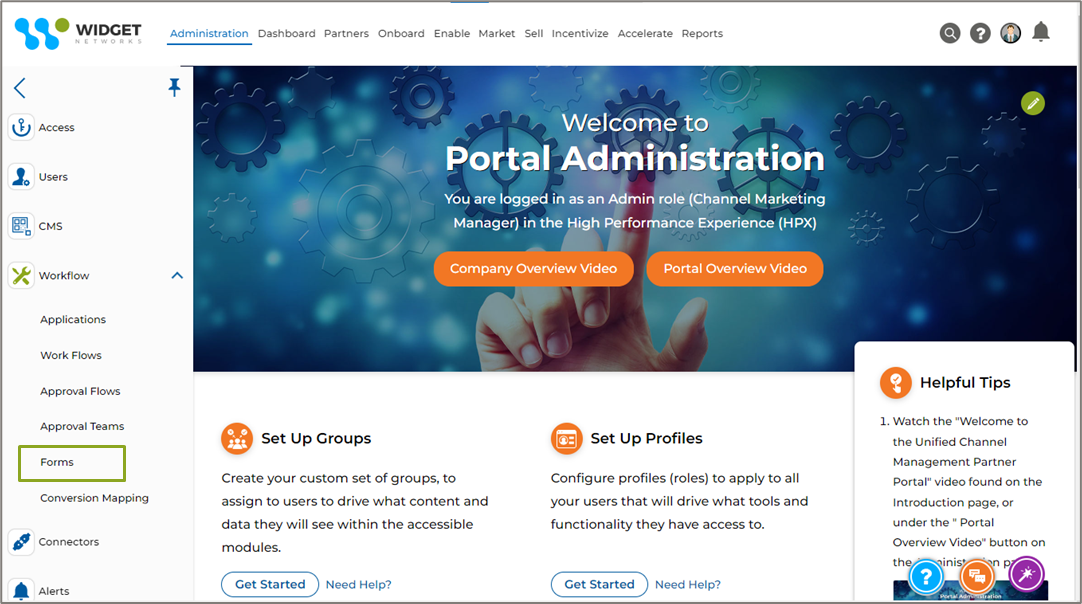
- Click Administration on the top menu.
- Click Workflow -> Forms in the left menu bar.
View Dynamic Forms
- Clicking Forms in the left menu bar will take you into the Forms Library i.e., the View Dynamics Forms page, where all the listed Forms are displayed.
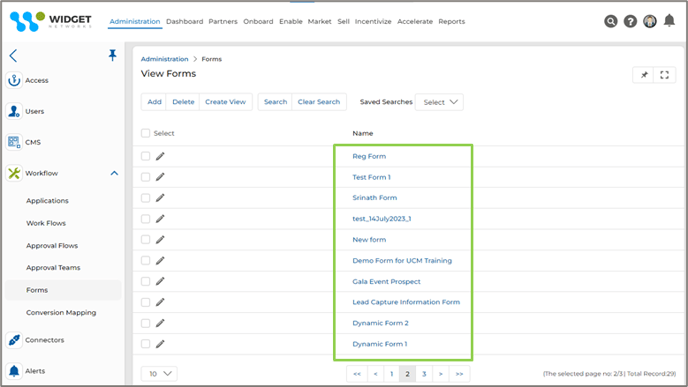
- The top part of the page provides the following actions:
- Add – Allows you to create a new ‘Form’
- Delete – Deletes selected record(s) from the listing page.
- Create View – This lets you create your view with a set of columns as needed.
- Search – Opens a new pop-up window where you can put search criteria to find desired records.
- Clear Search – Clears the search made.
- Saved Searches – Shows a list of saved searches in the search drop-down. When selected, two more options are shown:
Edit – Provides option to update the selected search name.
Delete – Deletes the selected search name from the search drop-down.
- For each record in the grid, clicking:
- Edit (Pen icon) – Lets you edit the selected record.
- Any linkable item – Takes you to its details page.
Create View
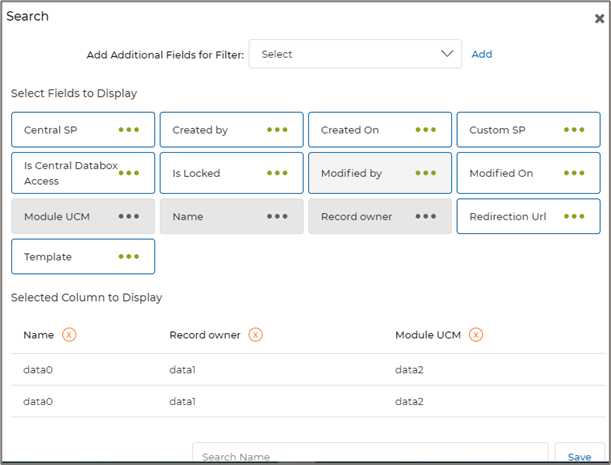
- Click the Create view button.
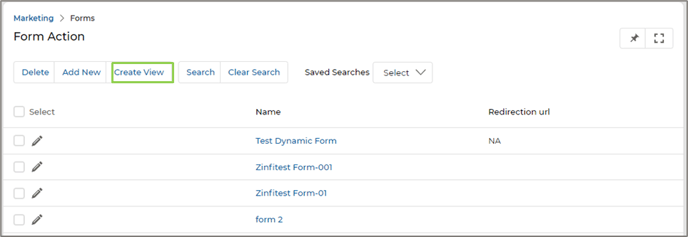
- Choose the additional fields and then click on Add.
- Click the Green Dots to select the fields for display.
- Selected columns are shown in the table. To remove a selected column from the display list – just click on the cross button.
- Provide a View Name, and then click Save to create the new view.
Add New Forms
- To create a new Form, click the Add button.
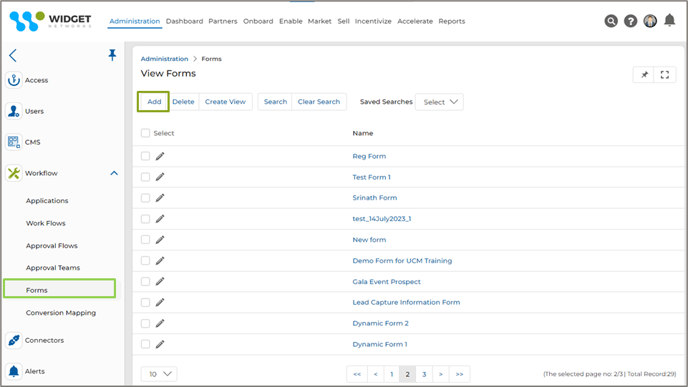
- Clicking the Add button takes you to the following page, consisting of multiple tabs, that allows you to configure the Form as per your requirements.
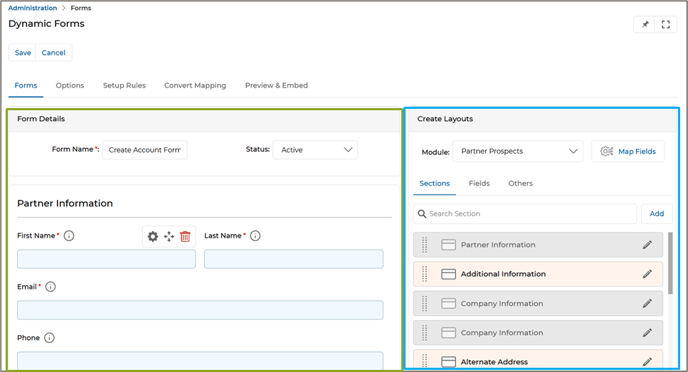
- Forms: This tab allows you to add Attributes/Fields to the Form to create a record for any of these application automatically - Prospect/Partner Prospect/Partner Contact as selected from the Applications Drop-down in the Create Layout manager (Highlighted in Cyan).
Form Details:
- Form Name – Shows the Name of the Form.
- Status – Need to choose from the options Active/Inactive. If the Status is ‘Active’ then only the Form can be used with the CMS editor.
Form Canvas
Create Layouts: This section allows you to select the module for which the Form is being created. If the Prospects module is selected, records entered through this Form will be saved in the Prospects module. The same applies for all other modules.
- Application – Select the application for which this Form is being created. When the Dynamic Form is associated with registering Prospects, you need to select the Prospects application, and for Registering Users along with Partner Prospects/Partner Contacts, you can select either Partner Prospects or Partner Contacts. To register a Partner Prospect or Partner Contact, you can select the specific application.
- Sections – Selecting the required application displays all the Sections currently active in UPM for the respective application. The sections required to configure the ‘Form’ can be dragged from the Create Layout section and dropped in the respective location.
Note: A Field can only be added to a Form Section - Fields – A Section can contain multiple Fields. Clicking Fields will display all the Fields pertaining to the respective section. Similarly, Fields can be dragged and dropped in the respective location. Only 3 Fields can be configured for every row.
- Clicking the wheel icon associated with any Field displays the Control Settings.
- Auto Populate based on Email - Putting a check mark on this box will make the specific field auto-populate based on the domain of the email provided.
Ex.: Company Information can be retrieved automatically based on the email domain.
- Read Only - Putting a check mark on this box will make the specific field Read-only.
- Hide Auto Populate Field - Putting a check mark on this box allows the system to automatically hide any field on the registration page layout if it detects that the field has been auto-populated based on the email domain. Administrators have the flexibility to enable/disable the visibility of this field.
E.g.: In the Company Information section if the ‘Annual Revenue’ Field is set to ‘Hide Auto populate Field’ then this field will be auto-populated with data but wont be visible to the users at the front-end.
- Auto-Populate by – Enabling this feature allows administrators to designate a single primary field, such as Company Name, Partner Number, or Email, for account validation during form submission. When a user fills out this tagged field, the system automatically checks for an existing account match and, if found, auto-populates other related fields like Country, State, City, and Region.
E.g. The “Company Name” field serves as the primary validation field in the form. When a user enters a value in this field, the system automatically attempts to match it with an existing account. If a match is found, related fields such as Country, State, and City are auto-populated based on the account data. The field designated as “Auto Populate By” is visually highlighted within the form for clear identification.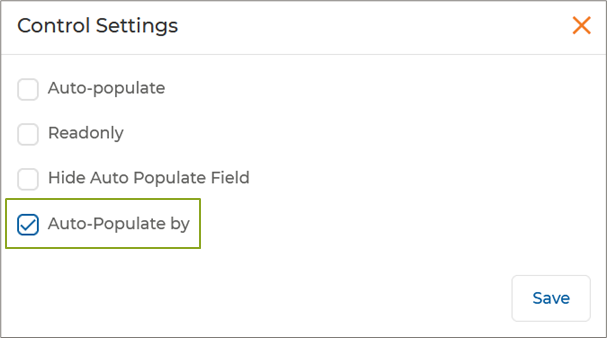
Only one field in the form can be tagged as “Auto Populate By.” If the admin attempts to apply this setting to multiple fields, the system will trigger an alert, enforcing this constraint.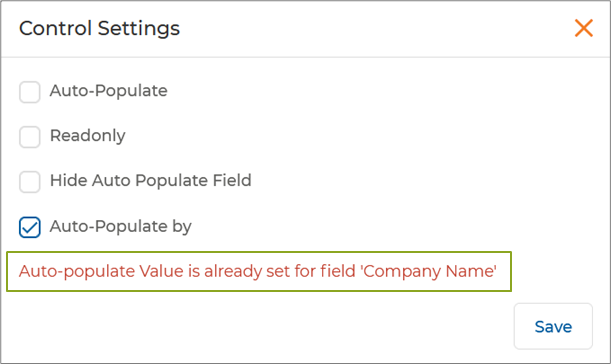
- Auto Populate based on Email - Putting a check mark on this box will make the specific field auto-populate based on the domain of the email provided.
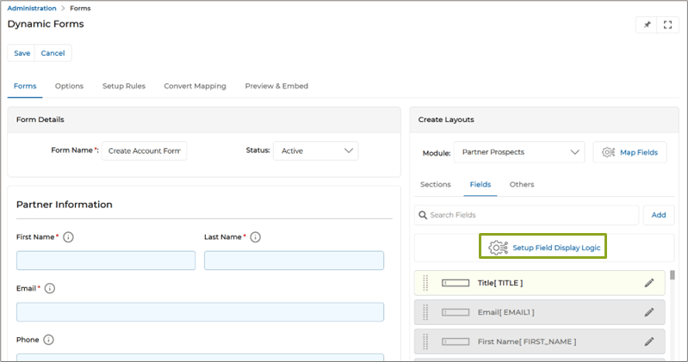
- Set Up Field Display Logic: Admins can define rules based on multiple values for a single field, such as “If Country = USA OR Albania”, then show State OR City, respectively. Display Logic supports multiple condition values per field, allowing broader configurations. For example, if “Country = USA”, then “State” will be shown. If “Country = Albania OR Andorra”, the system will display “City”, while hiding fields specific to the USA.
- Click “Setup Field Display Logic”, which takes us to the Add/Edit Flow Logic page.
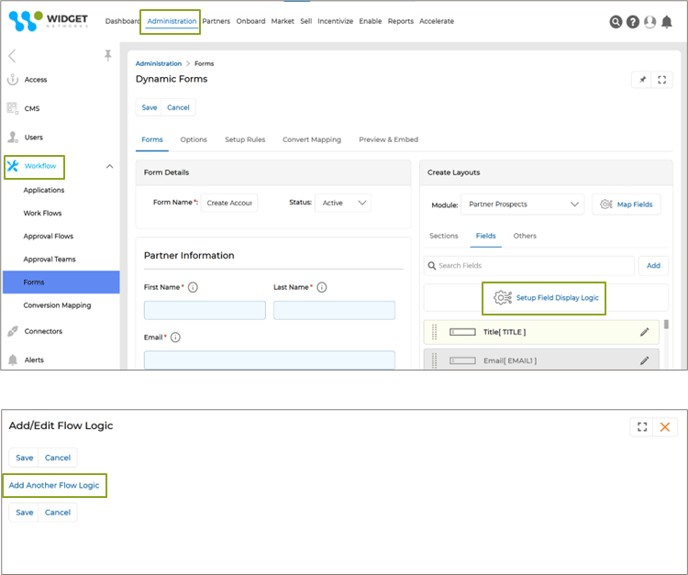
- We click the “Add Another Flow Logic” button, which will open the “If” dropdown. This dropdown consists of two values – Country and State.
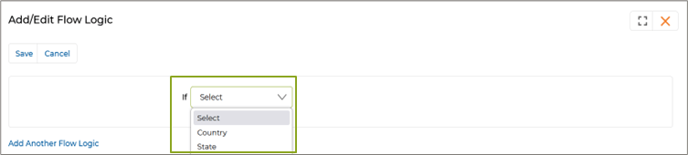
- In this example, we select “Country” and that opens another dropdown, which consists of “In” and “Not In”.

- Selecting a value in this dropdown will provide us with options to select countries by clicking Select.

- Multiple countries can be selected as per requirement.
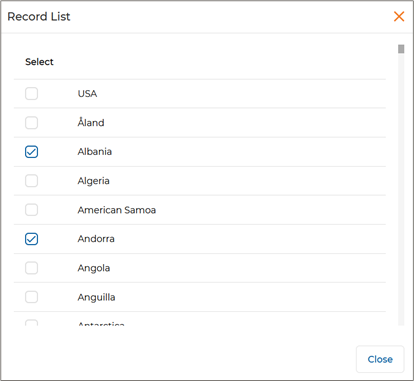
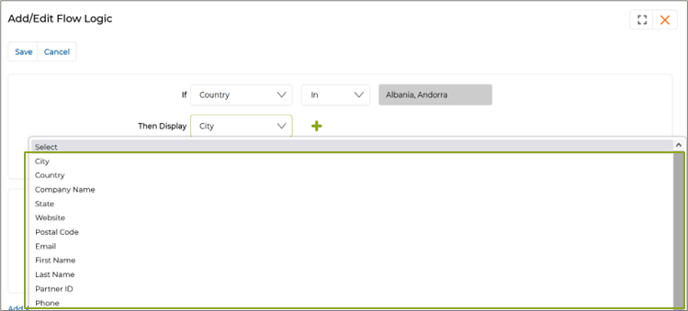
- Selecting countries will open the “Then Display” dropdown list. We can select appropriate values from there as per necessity.
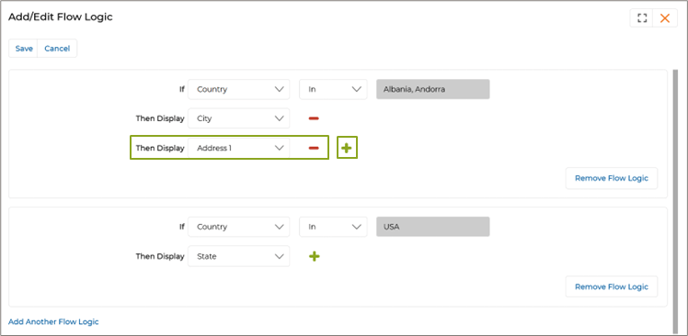
- By clicking + we can add more dropdown lists to select multiple values.
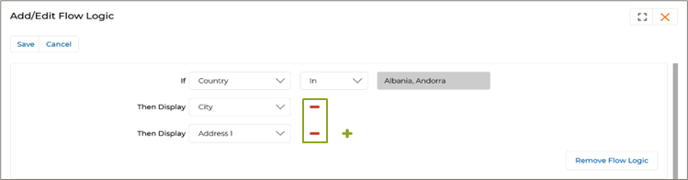
- If any dropdown is not required, click – to remove it.
- Remove a Flow Logic by clicking “Remove Flow Logic”.
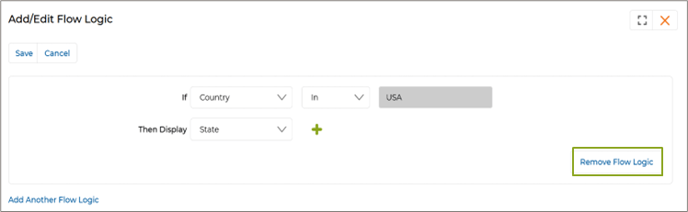
- To add a new Flow Logic, click “Add Another Flow Logic”.
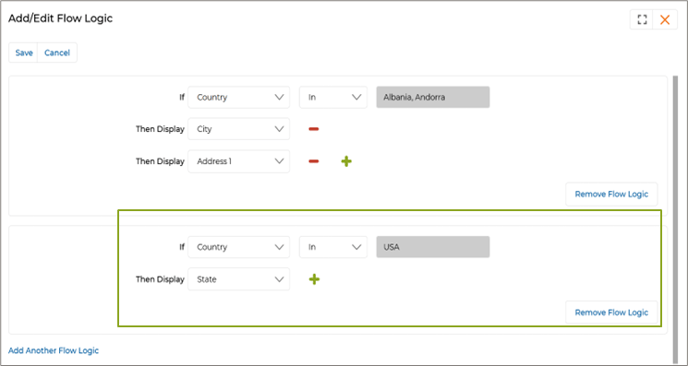
- Click “Setup Field Display Logic”, which takes us to the Add/Edit Flow Logic page.
- Map Fields: This feature streamlines the partner registration process by automatically validating and mapping prospect information, such as email addresses, company names, or partner numbers, to existing partner accounts. Auto-populating account details when a match is found reduces manual data entry and errors, improving efficiency and accuracy. The prospect is saved appropriately if no match exists, ensuring no data is lost. This flexible validation system enhances data integrity and simplifies management, accelerating partner engagement and improving user experience.
- Click Map Fields, which takes us to a dedicated window to map Partner Prospect details (such as company name) to existing account details (such as account name) in the platform.
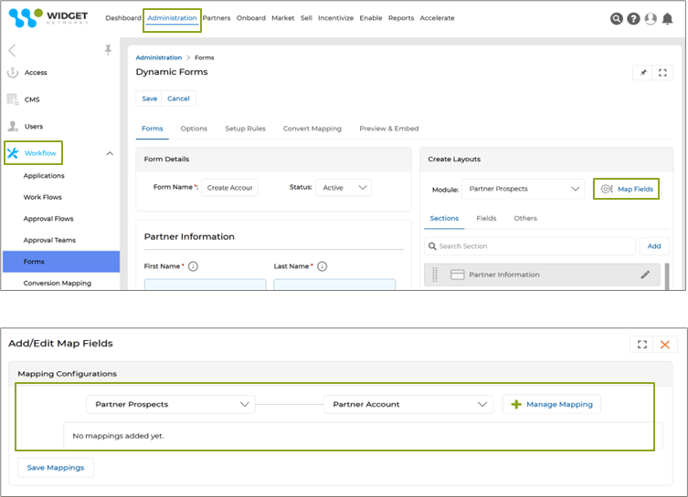
- Clicking "Manage Mapping" will make the dropdown lists visible, from which the user will be able to select the desired value.
- In the above example, "Company Name" is selected as the value in the Partner Prospect dropdown list.
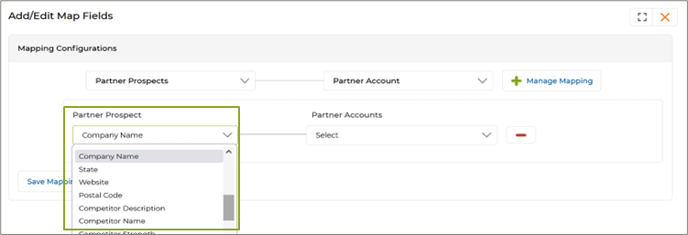
- In the Partner Accounts dropdown, "Account Name" is selected as the corresponding value.
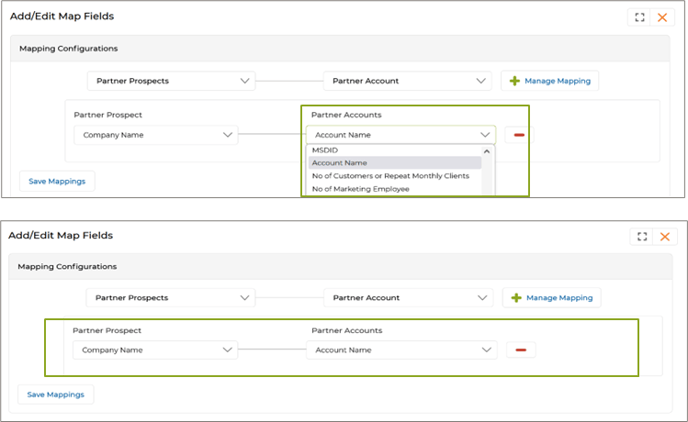
- Once the field mapping is saved, the system checks whether the Company Name provided in the form submission matches an existing Partner Account.
- If a match is found based on these parameters, the system auto-populates the account information to streamline data entry.
- If the entered company name or details do not exist in the portal, the prospect is saved as a "Partner Prospect" by default without auto-population.
- While multiple parameters can be added for reference, validation is performed based on only one selected parameter.
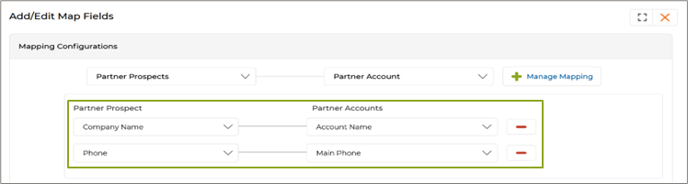
- Click Map Fields, which takes us to a dedicated window to map Partner Prospect details (such as company name) to existing account details (such as account name) in the platform.
- The "Terms and Conditions" section within a Dynamic Form can be enhanced by incorporating HTML hyperlinks.
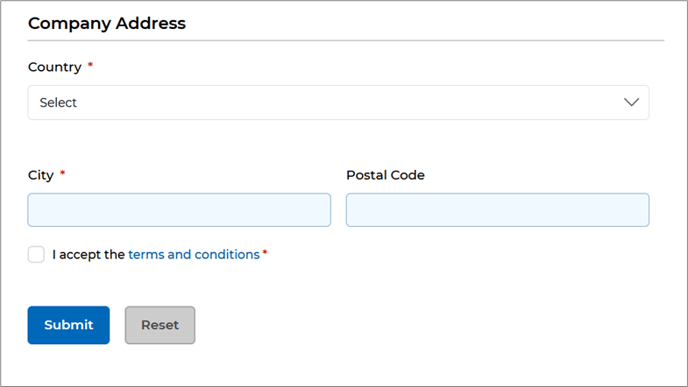
- The hyperlink can be linked to a web page or a pdf file.

- In the text ‘I accept the terms and conditions’, the word 'terms' is hyperlinked so that when clicked, it opens in the same tab or a new one, depending on the browser' settings.
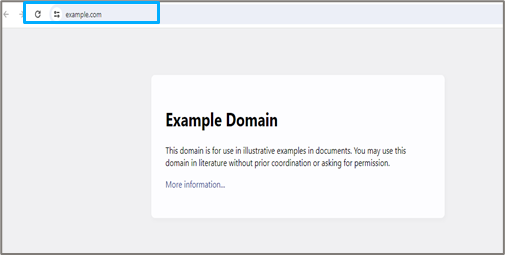
- The hyperlink can be linked to a web page or a pdf file.
- Clicking the wheel icon associated with any Field displays the Control Settings.
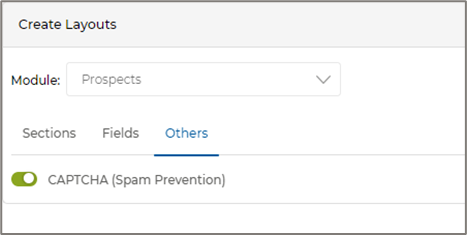
- Others – Captcha helps us to contain spam and secure the Form. Enabling the toggle associated with the captcha will ensure the Form will not get submitted by the end-user until captcha conditions are met.
- When done click the Save button .
- Options:
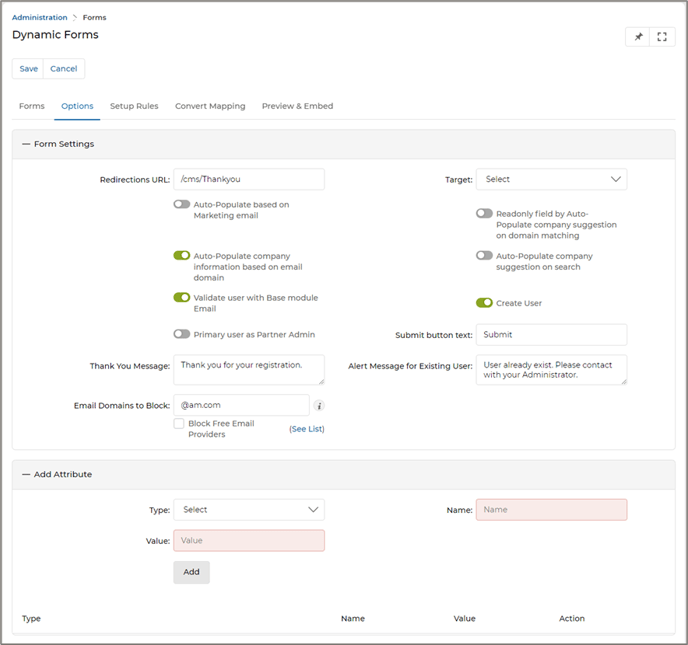
Form settings
- Redirection URL – Contains the URL of the specific page, where the user will be taken after submitting the Form.
- Auto populate based on Marketing Emails – Enabling the toggle key will ensure that all the details of the recipient Prospect will get auto-populated when the Form, tagged to any marketing tactics, is clicked on.
- Auto populate Company Information based on email domain – Enabling the toggle key ensures that based on the email domain, only the details pertaining to the recipient’s Company will get auto-populated in the Form when it is opened.
- Auto populate Company suggestion on Search – Enabling this will assist the user in searching for his ‘Company Name’ from a range of previous searches for that specific field. This is mainly used with the Forms associated with the ‘Before login’ stage (e.g., Partner Prospects).
- Read only Field by Auto-Populate Company Suggestion on Domain Matching – Enabling this field ensures that Company Information will be auto-filled based on the email domain match of existing records; the fields will be set to read-only mode by default, preventing edits.
- Validate User with Basic Module Email – The email the user provides will be pre-validated.
- Create User – Enabling this ensures a respective User Record is also created along with the application Record. When the toggle key is enabled, the fields ‘Profile Assigned’, ‘Group Assigned’, ‘Reports To’, and ‘User Country’ become mandatory during the rule setup process. Disabling the toggle key makes these fields optional for the "Set Up Rule" configuration
- Primary User as Partner Admin – Ensures that the User – the Primary User is the Partner Admin.
- Submit Button Text – After filling up the Registration Form prospects/prospective partners are required to submit the form by clicking the Submit button. The text displayed on the Submit button can be customized by the administrator by updating this field.
- Thank You Message – The default message will be displayed post-submission of the ‘Form.
- Alert Message For Existing User – If an existing user fills up the registration form, an alert message will get triggered, the contents of which can be customized by the admin from here.
- Email domain to block – Contains all the domains of the emails that you want to be blocked by the portal for saving via the Form.
- Block Free Email providers – UPM allows you to block certain Free Email providers, which can be checked by clicking the link associated with ‘See List’. If you want to block these Free Email providers, put a checkmark on the box. Records with such email domains won't be saved.
Add Attributes: This section is used to add hidden Fields in a Form . Hidden Fields in a Form are used to include additional data that needs to be submitted along with the Form but are not visible to the user.
- Type – Need to select Static Field/Query String. A Static Field is a shared variable that is used by all instances of a class. Query String is a part of URL and is usually indicated by a question mark symbol. It is a way to pass information from a client-side application (such as a web browser) to a server side application (such as web server).
- Name – Shows the Name of the Field.
- Value – Shows the value in this field.
- Set Up Rules: Adding and validating a set of rules with certain criteria gives you the privilege to assign ‘Profiles’ and Groups to any user. This is mainly used in the Forms, associated with the ‘Before Login’ page.
- Clicking ‘Set up Rules’ will take you to the page where all the rules associated to a specific Form are displayed.
- New Rules can be created by clicking the ‘Add Rule’ button whereas the ‘Delete’ button allows you to remove any existing rule.
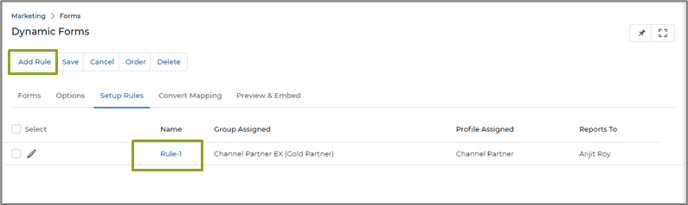
- Clicking the Name of any rule will take you to the details page of the specific Rule.
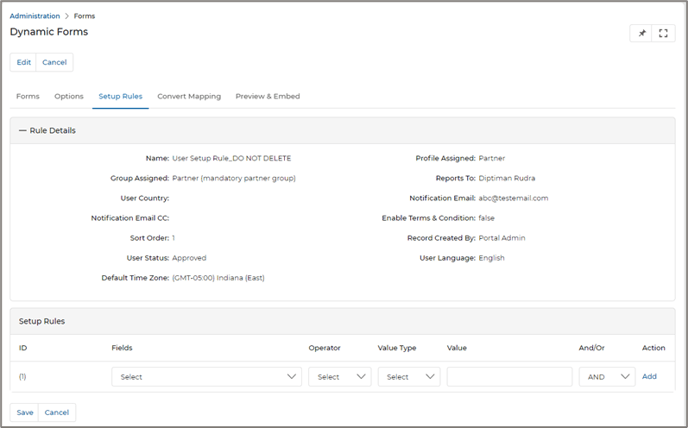
Rule Details:
- Name – Shows the Name of the specific rule.
- Profile Assigned – Select the relevant Profile. This field becomes mandatory only when a user is created from the ‘Form’, provided the ‘Create User’ toggle key is enabled in the ‘Options’ section.
- Groups Assigned – Select the relevant Group. This field becomes mandatory only when a user is created from the ‘Form’, provided the ‘Create User’ toggle key is enabled in the ‘Options’ section.
- Reports to – The admin has the provision to select the name of the person to whom the newly registered individuals should report to by default. This field becomes mandatory only when a user is created from the ‘Form’, provided the ‘Create User’ toggle key is enabled in the ‘Options’ section.
- User Country - Select the relevant ‘User Country’. This field becomes mandatory only when a user is created from the ‘Form’, provided the ‘Create User’ toggle key is enabled in the ‘Options’ section.
- Notification Email – Shows the mail address where notifications will be received.
- Record created By – Shows the Name of the person who has created this record.
- User Status – The admin can configure the default status of the newly registered user(s), registering from this Form. Available choices are ‘’Approved’’ and ‘Pending’. If set to “Approved”, then User is auto-approved.
- User Language – The admin has the provision to select the language of the prospect registering from this Form, However when no language is selected by default the user’s language will be English.
- Default Time Zone – The admin has the provision to select the ‘Default Time Zone’ of the user registering with this Form.
Setup Rules: Contains all the criteria that are set up to validate the aforementioned rule. If no validation criteria are set for any rule, then data will get pulled from the Rule that is set as default. e.g. if the country of the user – registered is USA, then the rule is auto-applied.
- Forms: This tab allows you to add Attributes/Fields to the Form to create a record for any of these application automatically - Prospect/Partner Prospect/Partner Contact as selected from the Applications Drop-down in the Create Layout manager (Highlighted in Cyan).
-
-
- Convert Mapping: This tab allows you to map the Fields contained in the ‘Prospects’ details page with the Fields associated with the Accounts and Contacts application.
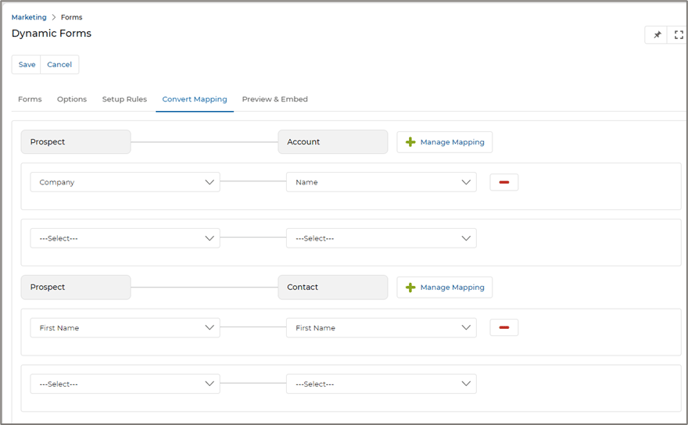
- Convert Mapping: This tab allows you to map the Fields contained in the ‘Prospects’ details page with the Fields associated with the Accounts and Contacts application.
-
Preview & Embed: This tab allows you to preview the contents of the Form before they are published. At the same time an HTML code also gets generated which can be copied and pasted in the CMS editor of any marketing tactics.
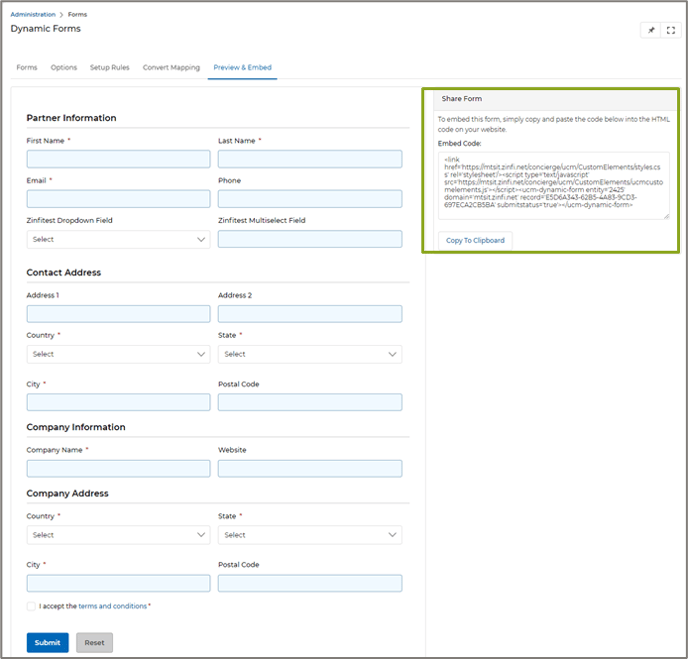
- Clicking Market -> Multi-Touch -> Campaigns, we can get into the Campaign Library where all the campaigns are listed.
- A click on the Name of any specific Campaign will take us to the details page of the Campaign, where all the tactics associated with the Campaign are listed.
- Clicking the Name of any specific tactic will take us to its details page, from where we can reach the CMS editor by clicking the Manage Content button. Here a click on the ‘Import’ button will take you to the HTML editor window as shown in the image below.
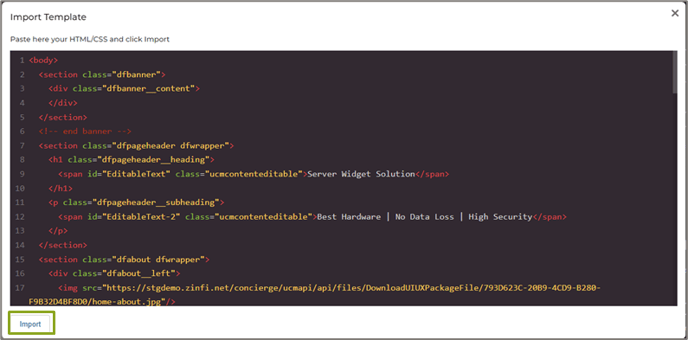
- Here you need to insert the generated HTML code and click on the Import button displayed in the lower left corner of the window. Now the rendered version of the Form template will be displayed as shown in the image below.
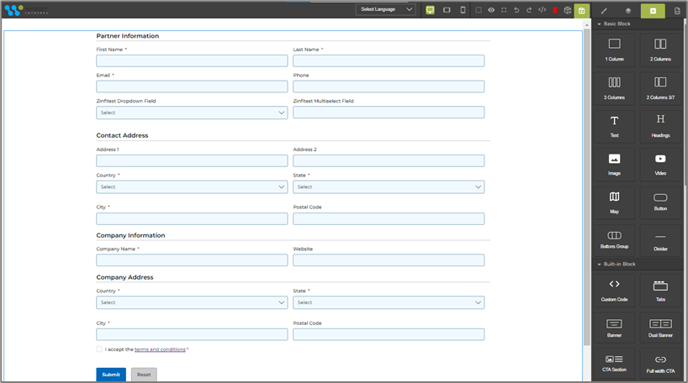
- When a Prospect fills up the mandatory Fields and clicks on Submit, he will get registered into the Prospects application.
- Similarly, you can copy the HTML code linked to the Dynamic Form used for registering a Partner Prospect and insert it into the CMS editor of the page dedicated to Partner Prospect creation. Once any Partner Prospect fills up the mandatory Fields and clicks on Submit, he will get registered into the Partner Prospects application.
Adding Tooltips to Sections and Fields
- To add a tooltip to any control on the pre-login page, the control must first be configured with a tooltip in the CMS. For instance, the 'Last Name' field can be configured with a tooltip by navigating to Administration > CMS > Tooltips.
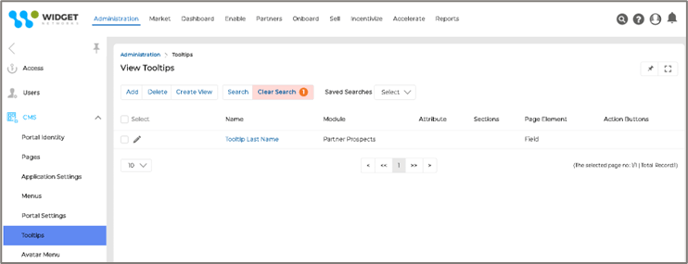
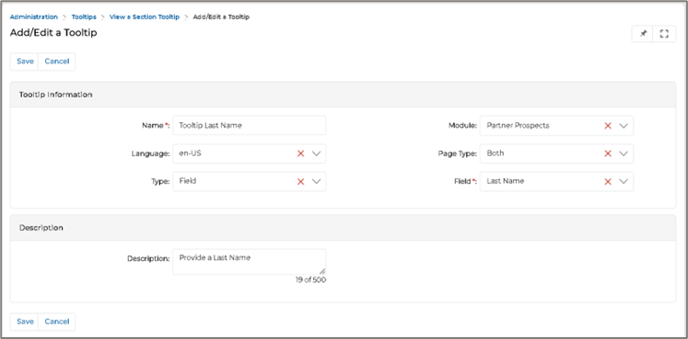
- Next, the existing field (without a tooltip) must be removed from the current form.
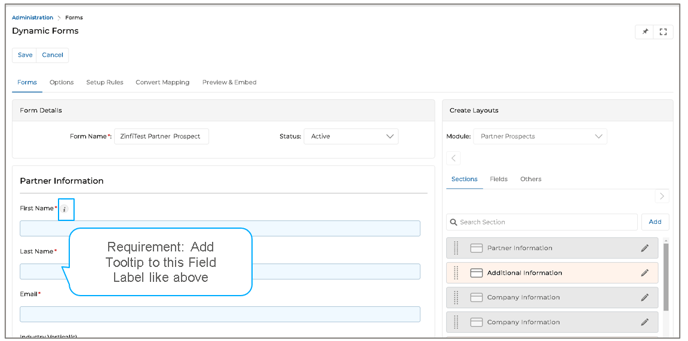
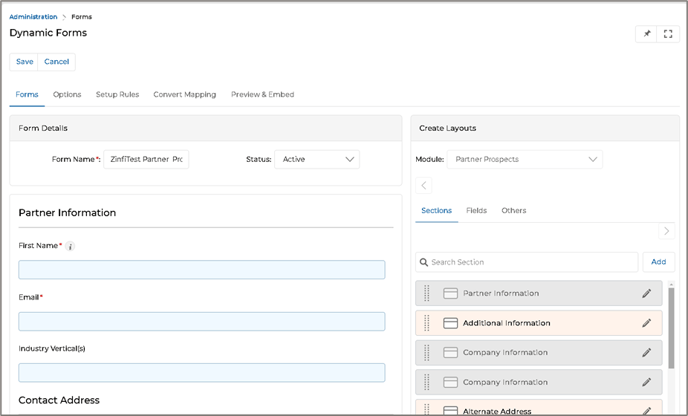
- Finally, the ‘Last Name’ field can be re-added from the ‘Create Layout’ panel using drag-and-drop functionality.
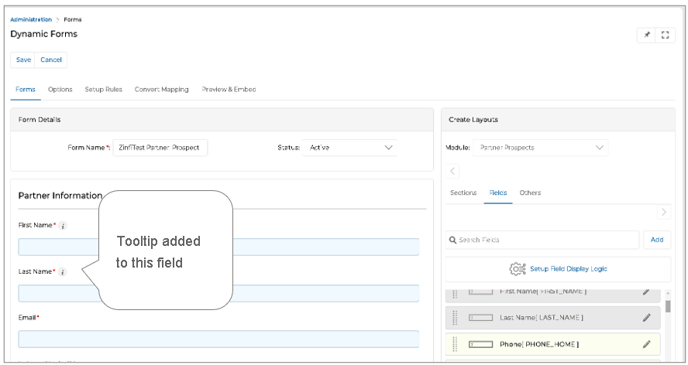
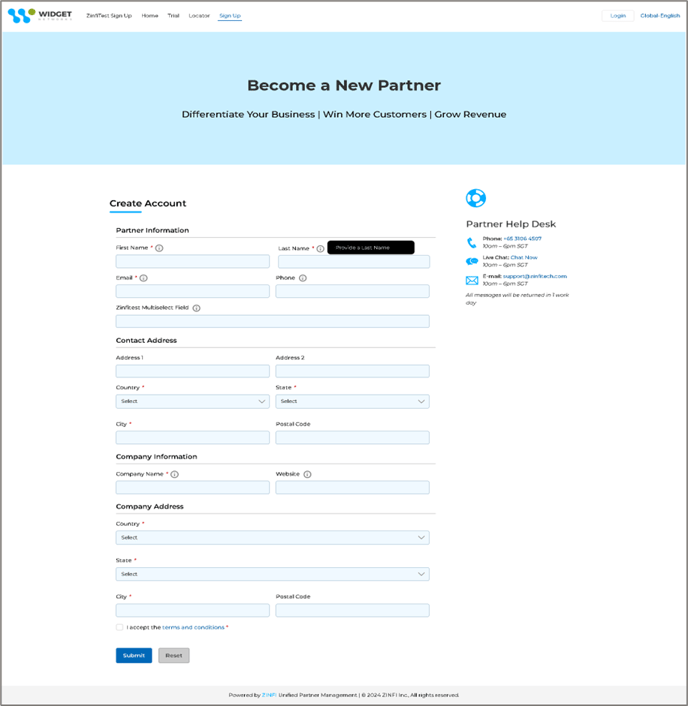
- Once tooltips are added to the required controls and the record is saved, they will appear on the pre-login page, as illustrated in the image below.